Shooting 360-Degree Walkthroughs for VR Lessons: 8 Easy Steps
Shooting 360-degree walkthroughs for VR lessons can feel intimidating at first. I get it—when you’re standing there with a camera that records everything, it’s hard not to think, “What if this looks weird in a headset?”
What I’ve noticed, though, is that it gets way easier once you stop treating it like “filming a video” and start treating it like “building a guided experience.” Keep the plan simple, shoot with purpose, and you’ll spend less time fixing avoidable problems later.
In the steps below, I’ll walk you through how I approach a typical VR lesson project—from setting learning goals to exporting something that actually works on common headsets. And yeah, I’ll include the stuff that usually goes wrong (because it always does).
Key Takeaways
Key Takeaways
- Start with measurable goals. If your VR lesson is “learn hand hygiene,” break it into 3–5 observable outcomes (example: “learn when to sanitize,” “identify correct technique,” “know what to do after touching surfaces”).
- Pick equipment based on your environment. For classrooms and workshops, I usually start with a consumer 360 camera (Insta360 / Ricoh Theta / GoPro MAX). For longer takes, prioritize stabilization and battery life.
- Design your route like a checklist. Decide what learners should look at every 10–30 seconds. Then plan hotspots to match those moments, not random scenery.
- Capture clean footage on purpose. Use a stable mount, shoot at consistent pacing, and avoid harsh glare. In many indoor spaces, I prefer diffused light (cloudy daylight or soft lamps) over direct sunlight.
- Stitch and edit with VR in mind. Trim obvious “dead air,” but don’t overcut. Make sure hotspots don’t float or sit behind seams. A smooth flow beats a perfect timeline.
- Test on the target device early. What looks fine on desktop can be blurry or nauseating on a headset. I test on at least one mobile viewer and one standalone headset before publishing.
- Make onboarding simple. Give learners a 30-second “how to move and interact” instruction, then let them explore. Confusion kills engagement fast.
- Iterate with real feedback. Fix hotspots first (placement/dwell time), then address navigation and pacing. Don’t assume it’s “just the video.”
Quick checklist I use before exporting: (1) stitching seam not cutting through key objects, (2) hotspot text readable, (3) important actions within the learner’s comfortable viewing window, (4) no obvious glare or blown-out highlights, (5) audio intelligible (or narration clearly layered), (6) device test passed.
Step 1: Define Learning Goals for the 360-Degree Walkthrough
Before I film anything, I write down what I want learners to be able to do after the experience. Not “understand the room.” Something specific.
Ask yourself: are they mastering a procedure, exploring a location, or understanding a concept? Then translate that into 3–5 outcomes you can test.
Example (healthcare training):
- Identify when to sanitize hands
- Demonstrate correct technique (timing + coverage)
- Know what to do after touching high-risk surfaces
Then I plan how I’ll assess it later: a short quiz, a checklist, or a follow-up task where learners describe what they saw and why it matters. This is what keeps your VR lesson from turning into a “cool video tour” that doesn’t actually teach.
If you’re unsure how to structure goals for learning, this guide on [how to write a lesson plan for beginners](https://createaicourse.com/how-do-you-write-a-lesson-plan-for-beginners/) is a solid starting point.
Step 2: Select the Right Equipment and Software for 360-Degree Video
Tools matter, but not in the way people think. You don’t need a studio setup—you need gear that behaves consistently in your environment.
Camera: If you’re starting out, models like Insta360, Ricoh Theta, or GoPro MAX are popular for a reason: easy capture and solid stitching out of the box.
Mounting: I always bring a tripod or stable mount. In one project I filmed handheld “just to get it done,” and the footage looked fine on a phone… until I watched it in VR and realized the wobble made learners feel slightly off within minutes.
Software: For stitching and editing, I’ve used Spatial, Krpano, and Unity depending on the workflow. If your plan includes hotspots and interactivity, make sure your tool supports hotspot authoring (or at least exports in a way your platform can handle).
File formats + exports: Before you shoot, check what your target platform accepts (Quest standalone, WebXR, LMS embed, etc.). Exporting “whatever your editor outputs” is how you end up re-stitching everything later.
One practical thing I do: I run a 5-minute test in the exact location (same lighting, same route). If the software crashes or stitching looks bad, I find out before I’ve recorded an hour.
If you want a broader equipment/software shortlist, you can reference this [software to create online training courses](https://createaicourse.com/software-to-create-online-training-courses) page for e-learning-focused options.
Step 3: Plan the Walkthrough with Interactivity and Engagement
Here’s the part people skip: route planning. But in VR, you’re not just recording scenery—you’re guiding attention.
I start with a simple walkthrough map: “At this point, learners should look at X. At this point, they should click Y.”
Hotspots that actually work:
- Place them where the learner will naturally look (near the center of their view, not behind small objects)
- Keep copy short. In VR, long text is hard to read and easy to ignore
- Decide interaction type: clickable hotspots vs. timed “dwell” triggers (timed triggers can be great, but they need tuning)
- Align hotspots to key moments (not 3 minutes after the thing they’re about)
I also add questions at natural pauses. For example: “What do you notice about this signage?” or “Which step comes next and why?” It turns passive watching into thinking.
Mini example walkthrough (healthcare hand hygiene):
- Scene 1: sink area → hotspot: “When should you sanitize?”
- Scene 2: dispenser → hotspot: “Correct technique steps”
- Scene 3: after touching surfaces → hotspot: “What to do next” + quick quiz prompt
Want more ideas for keeping learners engaged? This [effective teaching strategies](https://createaicourse.com/effective-teaching-strategies/) guide can help you translate normal classroom tactics into VR-friendly moments.
Step 4: Capture 360-Degree Footage Effectively
Capturing good 360 footage is mostly about control. Control the camera, control the lighting, and control the pace.
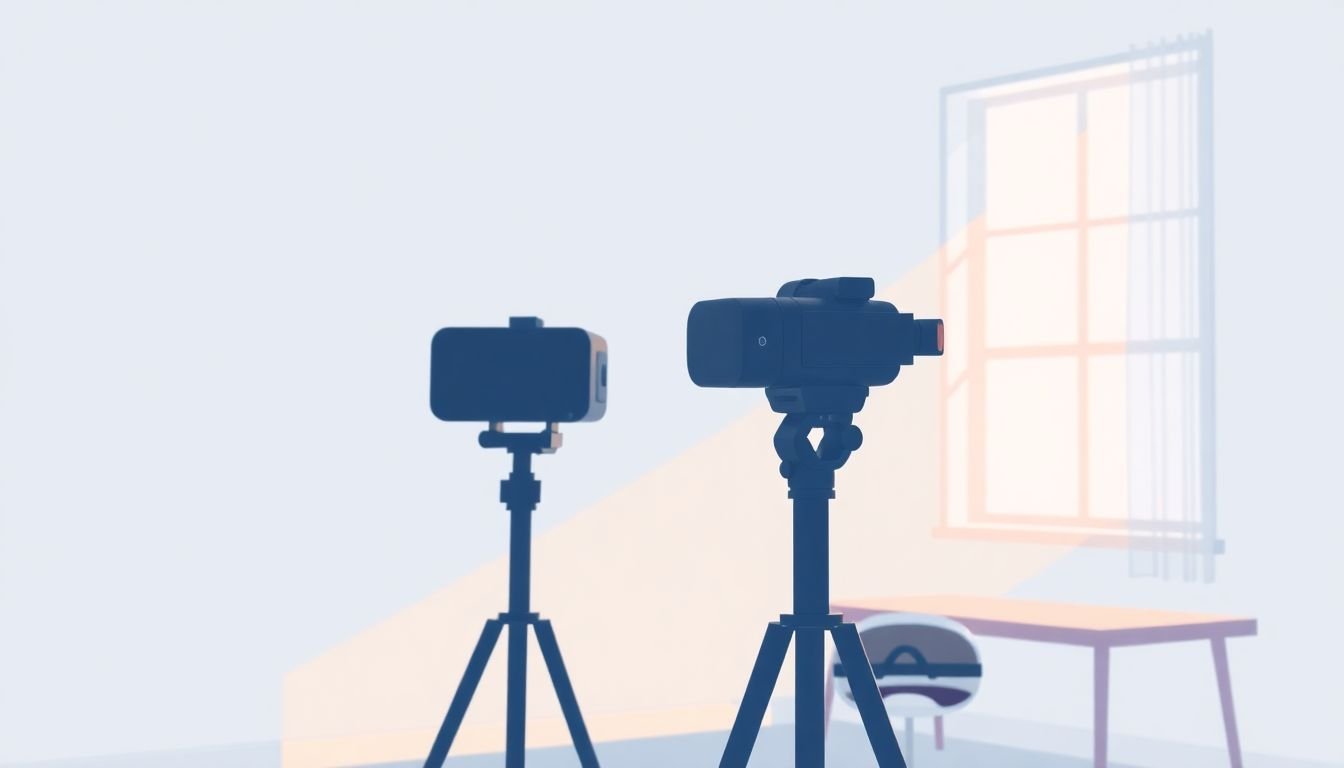
Stability is non-negotiable. Use a tripod or stable mount. If you’re filming inside a tight room, even small shake shows up badly in VR.
Lighting: If you can, shoot when lighting is even. Natural light can be great, but direct sunlight through windows often creates glare and blown highlights. I’ve had scenes where the stitching was fine, but the glare made the “important” hotspot area unreadable.
Movement: Move slowly when you adjust the camera or reposition for another segment. In my experience, fast movements are the fastest way to trigger motion discomfort.
Record multiple takes. I’ll usually grab 3 takes of the “must-have” moments. It’s not overkill—it’s insurance. When stitching seams or reflections cause issues, you’ll be glad you have backups.
Audio: If your camera captures sound, double-check it immediately. Background noise in VR can be distracting. If the environment is loud, record narration separately so you can keep it clean.
What I do during capture (quick routine):
- Put the camera at the planned height (usually eye level for training)
- Do a 20–30 second “walk test” to confirm framing
- Check for glare on reflective surfaces (glass, glossy floors)
- Mark 1–2 places where I’ll add hotspots later
And yeah—my “pro tip” is simple: wear a headset while you film if you can. Even a quick check can save you from realizing a seam runs right through the thing learners need to see.
Step 5: Edit and Enhance Your 360-Degree Video Content
This is where the experience becomes smooth. Stitching is the foundation, but editing is what makes it feel intentional.
Stitching: Use a tool like Krpano or Unity (or the stitcher that comes with your camera workflow). The goal isn’t “pretty pixels.” It’s avoiding distracting glitches—especially around important objects.
Hotspots and infobuttons: Add them so learners can’t miss the point. If you’re teaching a procedure, hotspots should appear right when the learner needs the next instruction.
Editing for VR comfort:
- Trim dead time (pauses, accidental camera drift, obvious mistakes)
- Avoid sudden cuts that make the learner feel disoriented
- Break long segments into smaller sections so learners don’t get tired or lost
Readability matters more than you think. I often keep hotspot labels short—like 3–7 words—then expand with a tooltip or an optional panel.
Device optimization: What looks sharp on desktop may look soft in a headset. If your workflow supports multiple resolutions/bitrate exports, test at least one “lower” export too. It’s better to have a slightly less crisp video that plays smoothly than a high-res file that stutters.
First-hand issue I ran into: In one VR lesson, my hotspot text was clear in the editor but became hard to read in headset because it landed near the seam. The fix wasn’t complicated—I moved the hotspot a little off the seam area and reduced the hotspot dwell time so learners didn’t “wait” while the text was unreadable.
Step 6: Test and Optimize for Various VR Platforms
Testing is where you find out what you actually built—not what you thought you built.
Test on real devices (not just a simulator). At minimum, try:
- Standalone headset (example: Oculus Quest)
- Mobile viewer (if your audience uses phones)
- Desktop/web preview (helpful for quick checks)
Here’s what I pay attention to:
- Navigation: Can learners move/rotate comfortably? Do they get “stuck”?
- Hotspot alignment: Are hotspots drifting because of stitching differences?
- Performance: Does the video stutter or drop frames?
- Comfort: Does the pacing cause motion discomfort?
If you’re using interactive hotspots or quiz overlays, confirm they behave the same across devices. Sometimes a feature works perfectly on desktop but doesn’t trigger correctly on mobile VR.
After you get feedback, don’t start by changing everything. I usually fix in this order: hotspot placement → hotspot timing/dwell → pacing → audio clarity → final export settings.
Also, skip “data you can’t verify.” If you want to compare platforms or learn what matters for VR delivery, use credible, directly relevant sources. For example, you can cross-check platform requirements via [compare-online-course-platforms](https://createaicourse.com/compare-online-course-platforms) before committing to an export pipeline.
Step 7: Implement the VR Lesson in the Learning Environment
Once your VR walkthrough is ready, the next hurdle is making sure learners can actually use it without frustration.
Compatibility first. Confirm your learners have access to compatible devices, and keep your instructions straightforward.
Onboarding script (what I recommend):
- “Put on the headset.”
- “Use the controller to look around / move if movement is enabled.”
- “When you see a hotspot, click/tap it.”
- “If anything feels uncomfortable, you can pause and reset.”
If you’re running a live session, I suggest doing a quick demo first, then letting learners explore. Watching someone else do it once reduces support questions dramatically.
Finally, don’t stop at “watch and explore.” Follow up with a quiz, discussion prompts, or a short practical task. VR works best when it’s part of a learning loop, not a one-off experience.
If you want teaching structure ideas for retention and engagement, this [effective teaching strategies](https://createaicourse.com/effective-teaching-strategies/) link is useful for building that follow-up.
Step 8: Share Additional Tips and Resources for Educators
After you publish one VR lesson, you’ll quickly learn what you wish you’d known earlier. That’s when communities and resources help.
I like to keep a short list of references for:
- Lesson planning and learning outcomes: [lesson plans](https://createaicourse.com/lesson-writing/)
- Assessment/quiz creation for learning checks: [making quizzes for students](https://createaicourse.com/how-to-make-a-quiz-for-students/)
Also, update your content when needed. If you’re targeting a platform that changes frequently, you may need to adjust exports or hotspot behavior over time.
And don’t underestimate networking. I’ve picked up practical “gotchas” (like how certain headsets handle text overlays) just from talking to other educators and creators who’ve already shipped similar lessons.
If you’re wondering whether you should even build a course from this—start small. Here’s a helpful read on [it’s easier than you think](https://createaicourse.com/can-anyone-create-a-course/).
FAQs
I write outcomes in “do this” language and keep them measurable. For example: “Learners can identify the correct handwashing sequence,” or “Learners can choose the right action after touching a contaminated surface.” Then I tie each outcome to a specific hotspot moment or post-lesson quiz question.
If you’re unsure, prioritize smooth playback over max resolution. In practice, many teams target high-quality 360 video at 30 fps (or matching your camera’s supported settings) and export in a platform-friendly format/bitrate. The key is testing on the actual headset—if it stutters, lower bitrate/resolution until it plays smoothly.
Two things help most: (1) shoot with a consistent capture plan so the stitcher has clean overlap, and (2) position hotspots/labels away from the seam. When I see a seam cutting through something critical, I either re-stitch with better alignment (if the software allows) or I adjust the hotspot placement so learners still get the instruction clearly.
Use hotspots as “attention anchors,” not decoration. Add short prompts right when learners need the next piece of information, and keep text minimal. If your platform supports it, include quick checks (like a 1-question quiz) after a key segment so learners have a reason to pay attention.