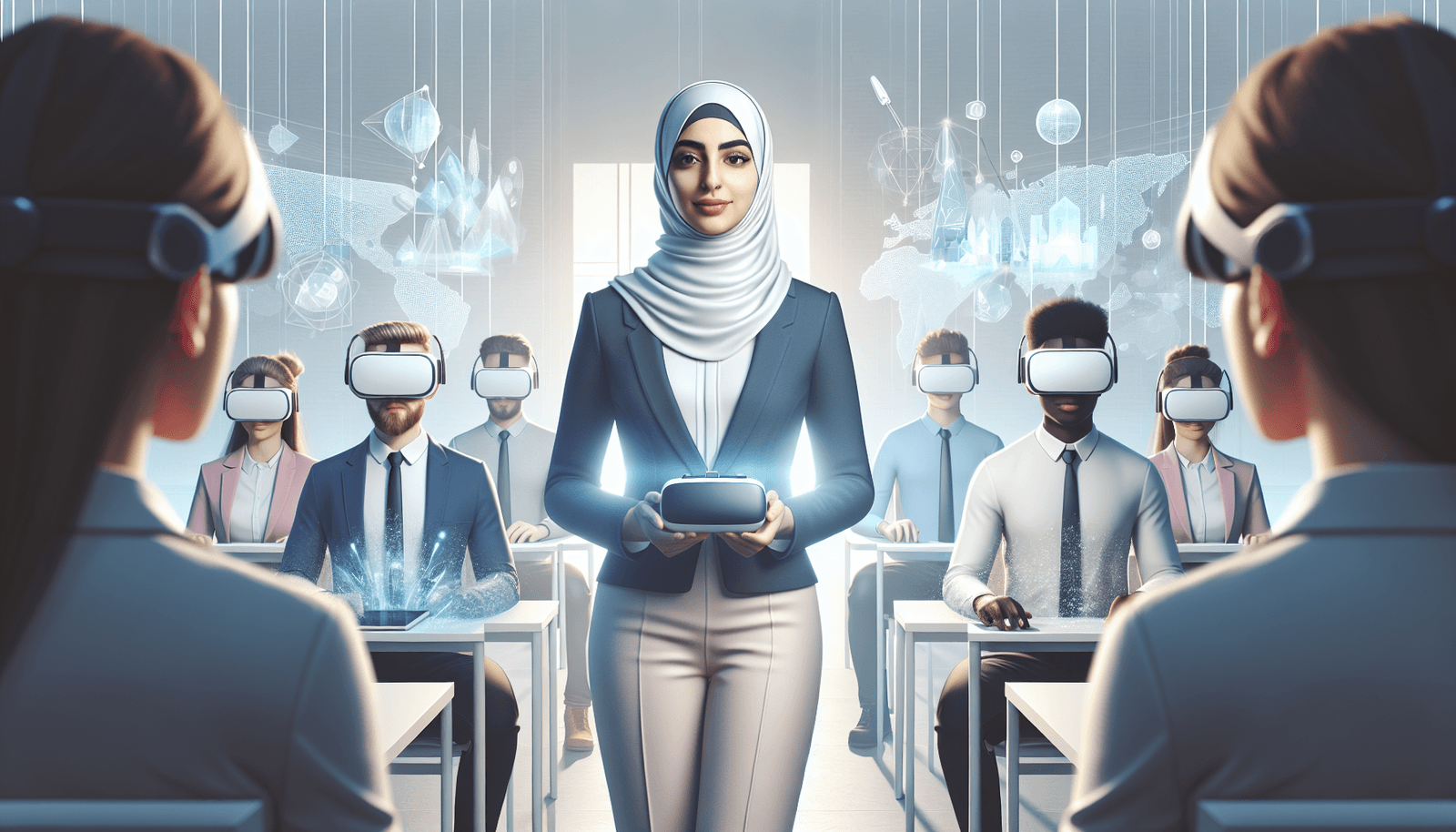
How to Implement VR in Online Courses: Key Steps and Benefits
I won’t sugarcoat it—adding VR to an online course can feel intimidating at first. When I first tried it, I kept asking the same questions you’re probably asking right now: “Do students actually have headsets?” “Will this slow me down?” “And what if people get motion sick?”
In my experience, the smartest way to approach VR isn’t to start with the “coolest” demo. It’s to start with a specific learning problem you want to solve—like procedural practice, spatial understanding, or safe simulation. I’ve rolled VR into training-style modules (think lab walkthroughs and scenario practice) and learned quickly that the process is mostly planning, testing, and accessibility—not just choosing a headset.
Below, I’ll walk you through a practical, step-by-step implementation path, what I’d choose for different course types, how to design VR lessons that don’t feel like a gimmick, and how to measure whether VR is actually helping. I’ll also call out the stuff that can go wrong (because it does).
Key Takeaways
- Start with a learning objective that VR improves (not just “because it’s VR”). Examples: simulations, spatial tasks, role-play scenarios.
- Pick tools based on device reality (standalone vs PCVR), licensing, and how you’ll author or adapt content—not just specs.
- Plan a pilot with clear success metrics (completion, quiz gains, usability scores) and a fallback path for students who can’t or won’t use VR.
- Design VR lessons as short, guided experiences (10–20 minutes is a sweet spot for many learners) with “comfort-first” movement options.
- Build an accessibility checklist: teleport vs smooth locomotion, seated/standing options, captioning workflow, controller remapping, and testing.
- Integrate VR into your course structure with a predictable lesson flow: briefing → VR session → debrief → assessment.
- Set technical expectations up front: recommended bandwidth ranges, storage/download options, and troubleshooting steps.
- Evaluate effectiveness with a simple rubric and iterate—VR can boost engagement, but it won’t automatically improve learning without good instruction.

Steps to Implement VR in Online Courses
Implementing VR in online courses isn’t just “buy a headset and upload a module.” It’s a project with constraints—devices, comfort, content licensing, and support. Here’s the approach that’s worked best for me.
1) Pick a learning goal VR actually improves
Before you touch any tool, write one sentence: “VR will help students do/understand ____ better than a video or reading.”
Good VR targets:
- Procedural practice: labs, equipment handling, safety drills
- Spatial understanding: anatomy, architecture, wiring layouts
- Scenario decision-making: customer interactions, emergency response
- Skill transfer: “do it” practice where repetition matters
Not-so-great VR targets (at least at first): purely factual memorization or content that’s easier to learn with a diagram or short animation.
2) Do a quick “device reality” check (this saves you later)
If you don’t know what learners can access, you’ll design for the wrong platform. In my pilots, I asked students one simple question: Which headset do you have access to? Then I planned for three common buckets:
- Standalone headsets (no gaming PC needed)
- PCVR (headsets connected to a gaming PC)
- No headset (fallback experience still needs to teach the objective)
Even if you’re aiming for VR-first, your course should include a non-VR option so learning doesn’t stall.
3) Choose your VR content approach (build vs license vs adapt)
Most course teams end up with one of these routes:
- License existing VR training content (fast start; depends on licensing and fit)
- Adapt a template (you customize scenarios/levels; usually faster than building from scratch)
- Build custom VR (best alignment; higher cost and more QA time)
4) Run a pilot with a real plan (and real success metrics)
This is where VR either earns its place—or gets cut. In one pilot I ran, we had 24 learners and 12 headsets (mix of standalone models). We ran VR for two short sessions (about 15 minutes each) and compared outcomes to a control group using the same lesson objectives in video format.
We measured:
- Completion rate (did they finish the VR activity?)
- Quiz improvement (pre vs post for the same knowledge checks)
- Retention (a follow-up quiz 7–10 days later)
- Comfort score (1–5: “I felt comfortable”)
- Usability friction (where they got stuck: controls, navigation, instructions)
What surprised me? The biggest drop wasn’t “VR fatigue.” It was confusing instructions. Fixing the briefing and adding a “practice room” reduced drop-off a lot.
5) Create a VR integration plan (use a timeline you can actually follow)
Here’s a practical sample timeline I’d use for a first VR module:
- Week 1: learning objective + device survey + content selection criteria
- Week 2: storyboard/lesson flow + comfort/accessibility settings plan
- Week 3: integration mock + instructor training materials + fallback plan
- Week 4: pilot with 20–30 learners + collect feedback + comfort reports
- Week 5: fixes (controls, instructions, locomotion, captions) + QA pass
- Week 6: launch + monitor support tickets + measure outcomes
6) Publish student instructions like you’re supporting a “first-time VR user”
Don’t assume students know how VR works. Your “Getting Started” content should include:
- What device they need (and what happens if they don’t have it)
- How to put on the headset comfortably (strap fit, IPD guidance if available)
- How to start the lesson (where the app/module is located) li>Controls cheat sheet (buttons, teleport, interaction method)
- Comfort guidance (how to stop, take breaks, and adjust settings)
Benefits of Using VR in Online Learning
VR can be genuinely useful in online education—when it’s used for the right job. The evidence is mixed depending on content type, but there are some patterns.
What I’ve seen consistently: VR is great for engagement and “I get it now” moments, especially when learners need to practice actions or understand spatial relationships.
Engagement that isn’t just novelty
VR tends to increase interest because it turns passive content into active exploration. But if your lesson is just a long, wandering experience, students tune out. Short guided sessions with clear goals work better.
Better learning for “do and decide” tasks
VR is most effective when learners must perform actions or make decisions, then reflect. For example, scenario-based training (safety procedures, customer interactions, lab steps) often shows stronger learning gains than “watch a video” formats.
Even in studies where VR improves outcomes, the biggest driver is usually instructional design, not the headset alone. VR is the delivery method; your lesson structure is the learning engine.
Memorability—yes, but only with debriefing
Immersive experiences are more memorable, but only if you help students translate what they experienced into concepts. In my pilots, adding a structured debrief (3–5 reflection questions + a short quiz) improved retention compared to VR-only.
Collaboration (when you plan it)
Multi-user VR can support teamwork, but it adds complexity: voice/chat moderation, session timing, and device parity. If you can’t support real-time collaboration reliably, asynchronous collaboration (shared notes, screenshots, and discussion prompts) is a safer start.
Choosing the Right VR Tools and Software
Tool selection is where most teams get stuck. If you choose based purely on “what’s popular,” you’ll end up fighting compatibility and licensing. I approach it like this: What devices do students have? What content format do we need? How much customization do we require?
Decision criteria I actually use
- Device support: standalone (Meta Quest), PCVR (SteamVR), mobile VR (limited today)
- Performance/latency: smooth interaction matters for comfort
- Authoring workflow: Can you edit scenarios without a full dev team?
- Content licensing: Are you allowed to use it in your course and distribute it to learners?
- Assessment support: Can you track completion or export results?
- Comfort controls: teleport options, vignette, seated/standing modes
Common options (and when I’d pick each)
Here are a few realistic categories you’ll run into. I’m not saying “these are the only choices”—just the ones I see teams use most.
-
Unity + VR SDKs (custom build)
Best for: bespoke simulations, specific lesson objectives, custom interactions.
Pros: maximum control, can optimize performance and comfort settings.
Cons: development cost, longer timeline, QA-heavy. -
Unreal Engine (custom build)
Best for: high-fidelity environments and complex visuals.
Pros: strong rendering; great for detailed worlds.
Cons: can be overkill for simple training; build pipeline complexity. -
WebXR / browser-based VR
Best for: lightweight modules where you want lower friction (no heavy installs).
Pros: easier access; great for short demos and exploration.
Cons: device/browser limitations; performance can vary. -
Training content platforms / VR libraries (license content)
Best for: fast deployment and curriculum alignment when you find the right match.
Pros: quicker launch, less development work.
Cons: less customization, licensing can be expensive or restrictive. -
LMS + VR app integration (course delivery)
Best for: tracking and course structure (assignments, completion, notes).
Pros: keeps VR tied to your gradebook and learning outcomes.
Cons: integration can require extra setup depending on your LMS.
Compatibility matrix (simple way to plan)
Use this as a starting checklist when you’re comparing options:
- Standalone headsets: prioritize optimized builds, comfort settings, and offline/low-bandwidth options
- PCVR: prioritize higher fidelity, but plan for learners who don’t have a gaming PC
- Non-VR fallback: provide a 2D version (video walkthrough + interactive quiz) so grading still works
Designing Engaging VR Course Content
VR content doesn’t have to be complex to be effective. In fact, the simpler the experience, the easier it is for learners to stay comfortable and focused.
Use a lesson flow that reduces confusion
My go-to VR lesson structure looks like this:
- Briefing (2–5 minutes): what to do, what to look for, and what “success” means
- Practice (optional): 30–60 seconds to learn controls in a low-stakes space
- VR session (10–20 minutes): guided steps or scenario checkpoints
- Debrief (5–10 minutes): reflection questions + link to course concepts
- Assessment: short quiz or scenario-based question set
Comfort-first design isn’t optional
Most “VR failures” in courses come from comfort issues (motion sickness, disorientation, fatigue). Design for comfort from day one:
- Teleport locomotion for movement-heavy tasks
- Vignette/comfort mode if your experience supports it
- Seated/standing options (let learners choose)
- Limit time in motion—short bursts beat long wandering
Interactive components that actually help learning
Instead of “look around,” add interaction tied to the objective:
- Step-by-step actions (grab, place, confirm)
- Decision points (choose an action and see consequences)
- Guided observation (highlight key objects or zones)
- Embedded checks (micro-quizzes before moving on)
Integrating VR into Existing Course Structures
VR works best when it fits your existing course rhythm instead of disrupting it.
Don’t replace everything—augment the right parts
In most courses, VR is best as a “module” within a broader unit. For example:
- Unit on lab safety: VR simulation + non-VR reading + quiz
- Unit on anatomy: VR spatial exploration + diagram-based assignment
- Unit on customer service: role-play scenario VR + discussion forum
Plan for onboarding time
Students need time to learn controls and adjust fit. I recommend a short onboarding module or a “first-time” practice scene, even if the VR app is simple.
Set clear learning outcomes per VR session
Write outcomes like:
- “By the end of the VR session, learners can identify and correctly use ____.”
- “Learners will select the safest response in scenario ____ and explain why.”
Then align your debrief questions and quiz to those outcomes. If the assessment doesn’t connect, students feel like VR was “entertainment.”
Communication during VR sessions
Real-time chat can be helpful, but it can also distract. A compromise I like:
- Enable a course support channel (for issues only)
- Use asynchronous discussion prompts right after VR
- Encourage learners to submit one screenshot or reflection (if the platform supports it)
Considerations for Accessibility and User Experience
If you want VR education to be inclusive, you can’t treat accessibility like an afterthought. I’d rather build comfort and alternatives early than scramble later.
VR accessibility checklist (practical, not theoretical)
- Locomotion options: teleport enabled; avoid forced smooth movement if possible
- Seated/standing modes: allow both, and test each if the platform supports it
- Comfort settings: vignette/comfort mode, adjustable snap turn, reduced acceleration
- Text readability: larger UI fonts, high-contrast UI panels, avoid tiny floating text
- Captions/subtitles: captions for spoken instructions and audio cues
- Audio descriptions: describe key visual events for learners who can’t rely on visuals
- Controller remapping: if possible, support alternate controller layouts or remapping instructions
- Alternative interaction: provide a non-VR option that still covers the same outcomes
- Safety and “stop” instructions: clear guidance on how to pause/exit and take breaks
What to test with real people
In my testing, I always run through these scenarios:
- First-time VR user (can they complete the session without help?)
- Someone with motion sensitivity (do they need teleport/snap turn?)
- Someone using the experience seated
- Someone who reads slowly (is the UI readable?)
- Someone who can’t use VR (does the fallback lesson teach the same objective?)
Technical Requirements for VR Implementation
Technical planning is where VR projects win or lose. If you don’t set expectations, students will show up with the exact problems you didn’t plan for.
Hardware scenarios you should account for
-
Standalone VR (common for online learners)
Typical requirements: a standalone headset, updated firmware, enough storage for the VR app/module.
For many teams, this is the best path because students don’t need a gaming PC. -
PCVR (higher fidelity, higher barrier)
Typical requirements: a capable gaming PC (GPU matters), headset + compatible PCVR runtime, stable connection.
You’ll likely need a bigger support burden here. -
Non-VR fallback
Provide a 2D version: video walkthrough + interactive quiz + optional “explore mode” on desktop/mobile.
Bandwidth guidance (what “adequate” actually means)
VR streaming can be bandwidth-hungry. I recommend planning for at least:
- 5–10 Mbps minimum for stable playback in lighter experiences
- 15–25 Mbps for smoother streaming and fewer buffering issues
- Lower bandwidth option: prefer experiences that can be downloaded or run offline where possible
If your VR content requires constant streaming, expect support tickets. Downloadable/offline-first modules reduce that stress a lot.
Space and safety requirements
Even online, students need guidance. Provide simple instructions like:
- Use a clear area (remove trip hazards)
- Have a chair option for seated play
- Keep a “guardian boundary” on if the headset supports it
- Don’t encourage full-room movement unless the experience truly needs it
Troubleshooting playbook (quick fixes you should publish)
- Black screen / app won’t launch: restart headset, verify app install, check headset OS updates
- Controller tracking issues: re-seat batteries, clean tracking sensors, re-pair controllers
- Stutter/lag: reduce graphics settings (if available), close background apps, check Wi-Fi stability
- Motion sickness reports: switch to teleport/snap turn, shorten session time, add comfort vignette
- Audio problems: verify headset volume and audio output settings
Training Instructors and Students on VR Use
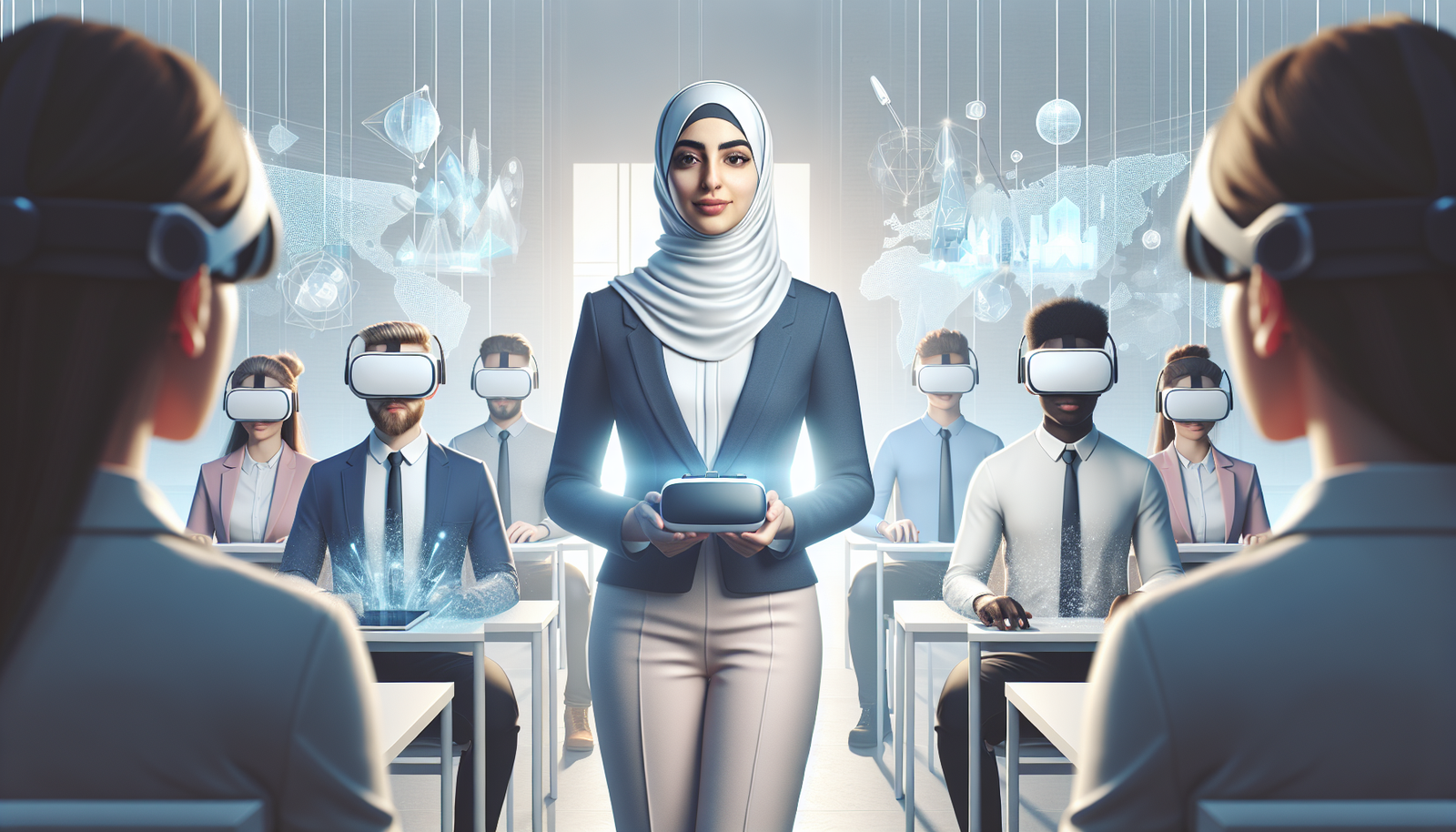
VR doesn’t work unless people know what to do when something goes wrong. I’ve seen even great VR content flop because instructors weren’t prepared to troubleshoot basic issues.
Instructor training (what they actually need)
Give instructors a short “run of show” plus a troubleshooting guide. Cover:
- How to launch the VR module and verify it works
- How to switch comfort settings (teleport, snap turn, vignette)
- How to handle common issues (controller pairing, audio, performance)
- How to facilitate debrief discussions and guide reflection
Student onboarding (make it idiot-proof)
Students benefit from orientation videos and quick-start checklists. In my pilots, a 3–4 minute “watch this first” video reduced support requests surprisingly fast.
- Show the exact steps to start the session
- Explain how to interact (point, grab, press, confirm)
- Include a “comfort and safety” section
- Provide a fallback path if they can’t access VR
Keep support channels open
During the first live VR week, I recommend having a dedicated help window (even 30–60 minutes) and a simple FAQ thread. Don’t wait for students to email you—give them a place to ask and you’ll fix issues faster.
Evaluating the Effectiveness of VR in Courses
Here’s the thing: VR can feel effective even when it isn’t. So measure it. I use a simple rubric and compare against a non-VR baseline.
Set benchmarks before launch
Pick 3–5 metrics you care about:
- Completion rate: aim for a target like 70–85% for first pilots (adjust for your audience)
- Quiz score improvement: pre vs post for the same concepts
- Retention: a follow-up quiz 7–10 days later
- Comfort/usability: student ratings and “stuck points”
- Support volume: number of tickets per 10 learners
Use a comparison that makes sense
If you can, compare VR vs a video/interactive version with the same learning objectives. If you can’t run a full control group, at least compare:
- VR cohort quiz gains vs your historical course averages
- VR session outcomes vs non-VR modules in the same course
Track what students say they struggled with
When you review feedback, categorize issues:
- Instruction problems: unclear steps, missing briefing
- Control problems: navigation, grabbing, button mapping
- Comfort problems: motion sickness, fatigue, disorientation
- Technical problems: lag, audio issues, app crashes
Then fix the top 1–2 categories first. That’s typically where the biggest gains come from.
Future Trends in VR and Online Education
VR in education is still evolving fast. The direction I’m watching is less about “bigger worlds” and more about better learning support.
- AI-assisted personalization: adapting scenarios based on learner performance (what they missed, where they hesitated)
- More realistic collaboration: shared spaces with better voice/chat management and smoother syncing
- Better haptics and tracking: more subtle feedback for skills training (without making comfort worse)
- Accessibility improvements: more comfort controls, better captioning pipelines, and improved controller options
In other words: we’ll likely see VR become more “teachable” and less “wow, cool demo.” And honestly, that’s the version educators should want.
FAQs
Start by defining the learning objective VR will improve, then check what devices learners can access. Choose a content approach (license, adapt, or build), run a pilot with clear success metrics, and create a detailed integration plan (schedule, instructions, and fallback for non-VR learners). Finally, train instructors and students, then evaluate results and iterate.
VR enhances online learning by making complex concepts feel tangible and by enabling practice in simulated environments. It’s especially strong for procedural skills, spatial understanding, and scenario-based decision-making—especially when you pair the VR experience with a guided debrief and assessment.
Plan for accessibility from the start: offer comfort modes (teleport/snap turn), support seated/standing options, make text and UI readable, and ensure captions/subtitles for spoken content. Provide controller remapping or clear control alternatives when possible, and always include a non-VR option that teaches the same learning outcomes.
You typically need a VR headset (standalone or PCVR), compatible controllers, and software/app access. For streaming experiences, plan for stable bandwidth (often in the 15–25 Mbps range for smoother sessions). Also prepare a troubleshooting guide and a fallback learning experience for students who can’t access VR.