
How To Do A Webinar On YouTube: A Complete Guide
So you’re thinking about hosting a webinar on YouTube? Honestly, I get it—there’s a lot to juggle: the topic, the slides, the tech, the chat… and if anything goes sideways, it’s live. Still, it’s one of the easiest ways to reach people who are already on YouTube.
In my first couple attempts, I over-prepared the content and under-prepared the “boring” stuff (audio levels, lighting, and what I’d do when someone asked a question I wasn’t ready for). The result? Great topic… messy delivery. After I tightened my setup and added a simple run-of-show, my webinars got smoother fast—and people actually stayed to the end.
In this post, I’ll walk you through everything you need: setting up your YouTube channel, picking a topic that converts, setting up tools (with real settings), promoting effectively, going live without panic, engaging during the stream, and then following up with actual next steps.
Key Takeaways
- Enable live streaming on your YouTube channel and brand the channel so attendees instantly recognize you.
- Pick a webinar topic with a specific outcome; aim for 45–60 minutes and build a tight agenda around that promise.
- Write a run-of-show (with timestamps) and rehearse transitions—your audience will feel the difference.
- Use audio-first planning: set mic placement, target bitrate/sample rate, and test at the same distance you’ll speak from.
- Promote with templates: thumbnail text formulas, description copy blocks, and a 7-day calendar that gives people reminders.
- Do a real pre-flight tech check (internet upload, encoder settings, scene sources, audio mix) before you go live.
- Engage on purpose: ask early questions, schedule Q&A, and moderate chat so questions don’t derail you.
- After the webinar, send a clear follow-up (recording + resources + next step) and review retention stats to improve.
How to Host a Webinar on YouTube
Hosting a webinar on YouTube works because it’s familiar to viewers and easy to discover. Plus, you get a recording automatically that you can reuse for weeks.
Here’s the mindset shift I wish I’d had earlier: your webinar isn’t just “a live video.” It’s a planned event with a beginning, value blocks, engagement moments, and a clear next step. Once you treat it like that, everything gets easier.
Let’s get you set up so you can focus on teaching (not troubleshooting).
Setting Up Your YouTube Channel for Webinars
First things first: you need a YouTube channel and live streaming enabled.
If you don’t have one yet, sign in to YouTube and click Create a Channel. Pick a channel name that matches your brand—people should recognize you instantly when they see the stream.
Then customize it:
- Channel banner: add your webinar theme or tagline (something like “Weekly Live Training” or “Practical Marketing Webinars”).
- Logo: use a clear high-contrast image so it looks good in the corner of the livestream player.
- About section: write it like a landing page. Include who it’s for, what you cover, and a link to your site or lead magnet.
Now check live streaming permissions. Go to YouTube Studio > Content or Settings > Channel and look for live streaming status.
In my experience, this is the part that catches people off guard. I once scheduled a webinar and only realized the stream type wasn’t available after I’d already built my promo assets. The fix was boring but simple: I verified the account and waited for permissions to update before committing to the date publicly.
Choosing the Right Webinar Topic and Format
A good webinar topic isn’t just “something you know.” It’s something your audience can’t easily solve on their own—and it should end with a measurable outcome.
Here’s what I look for when I’m picking a topic:
- Specific pain: “How to fix X” beats “All about X.”
- Clear result: “You’ll be able to do Y by the end.”
- Audience level: beginner, intermediate, or advanced—pick one and write for that level.
To find topic demand, I check Google Trends and relevant subreddits/communities where your audience actually hangs out. If you see the same question repeated weekly, that’s a strong sign.
For format, choose based on how your content naturally teaches:
- Lecture-style: best for frameworks, checklists, and step-by-step processes.
- Demo/webinar with screen share: best for software, workflows, and “watch me build” sessions.
- Panel: great when you have multiple experts and can keep answers tight.
- Q&A-heavy: works if you already have an audience who submits questions.
Timing matters too. Aim for 45–60 minutes if you’re teaching new material. If it’s mostly Q&A, you can go longer, but don’t stretch the teaching block past ~30 minutes without a reset (a demo, a recap, or a new segment).
Preparing Your Webinar Content
This is where most “how-to” posts stay vague. So I’m going to be more concrete.
Start by writing your agenda like a video outline. Then turn it into a run-of-show with timestamps.
1) Build a run-of-show (use this template)
- 0:00–2:00 (Warm welcome): who you are, what they’ll learn, and how to participate in chat.
- 2:00–7:00 (Hook + stakes): show the problem in a quick example.
- 7:00–22:00 (Value block #1): teach the core framework or first steps.
- 22:00–30:00 (Demo / example): walk through a real case.
- 30:00–45:00 (Value block #2): common mistakes + how to avoid them.
- 45:00–55:00 (Q&A): pick 3–5 questions you pre-filtered.
- 55:00–60:00 (Recap + next step): summarize in 3 bullets and share the resource/offer.
2) Write it so you don’t ramble
Instead of “talk about X,” write the exact points you’ll cover and what you’ll say at transitions. I literally keep a small cheat sheet with phrases like “Okay, quick recap” and “Here’s where people mess up.” It sounds silly, but it saves you when nerves hit.
3) Add stories (but make them useful)
I’ll be honest: random stories don’t help. The story should prove a point.
- Anecdote #1 (what went wrong): On one webinar, my audio peaked whenever I leaned forward. Viewers complained in chat, and I didn’t realize it until I checked the recording. After that, I marked a “speaking spot” on my desk and kept my mic distance consistent.
- Anecdote #2 (what changed): I used to answer every chat question immediately. It derailed the teaching block. Now I collect questions and answer during the scheduled Q&A window, and I only interrupt if it’s truly urgent or relevant to the current step.
- Anecdote #3 (small fix, big impact): I started adding a “pause and recap” every 10–15 minutes. My watch time jumped because people knew when the next section started.
4) Rehearse like you’ll be live (because you will)
Rehearse at least 2 times. The first run is for content. The second run is for timing and transitions. If you’re consistently going over by 10 minutes, cut one section. Don’t “stretch” a webinar—you’ll lose attention.
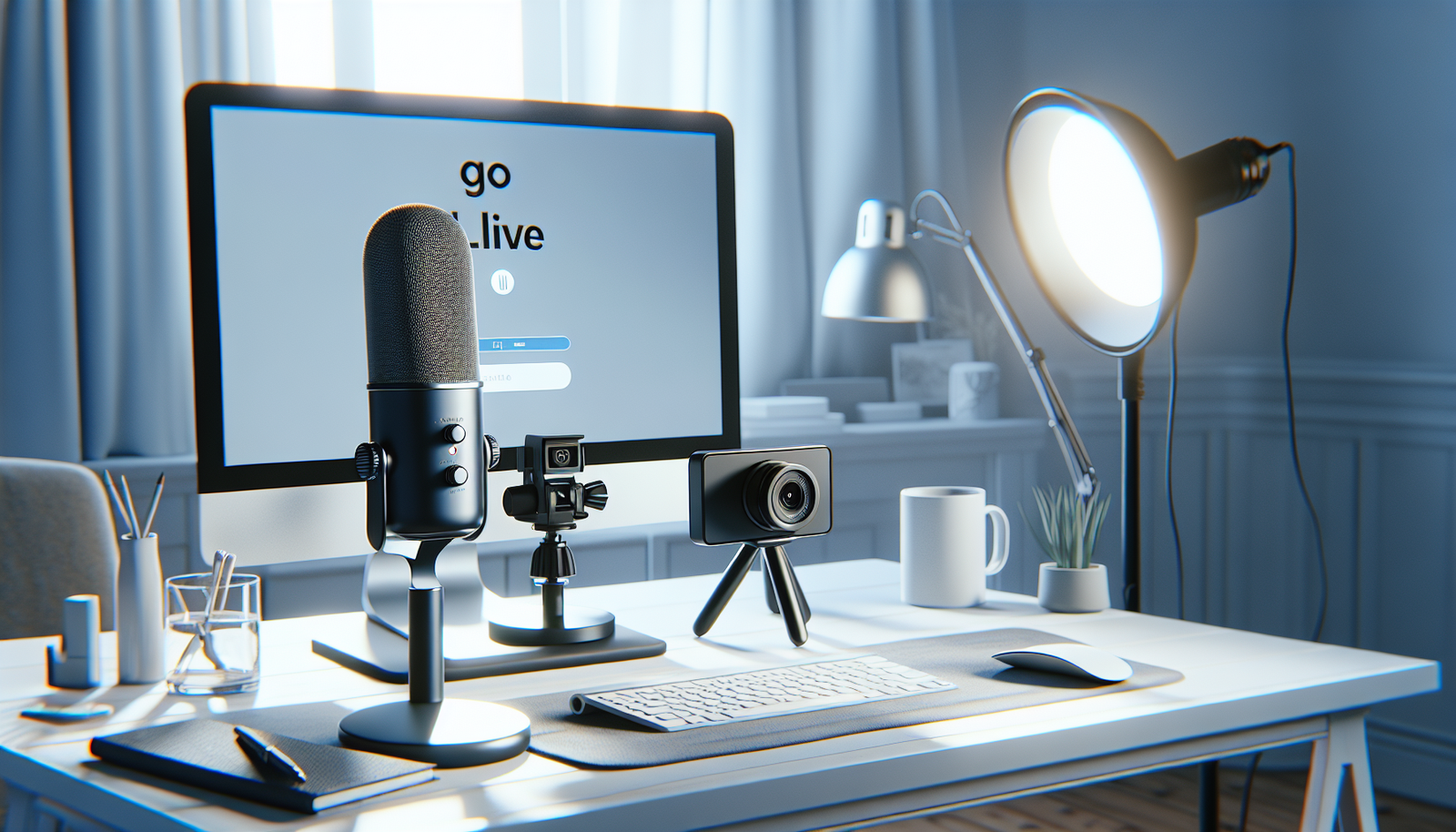
Tools and Equipment Needed for a Successful Webinar
Let’s talk equipment without the fluff. For YouTube webinars, audio and stability matter more than fancy cameras.
Microphone (audio-first)
My rule of thumb: if your mic sounds bad, people won’t forgive anything else.
- USB condenser mic: great if you can control background noise.
- Lapel mic: better if you move around (but you still need consistent placement).
Placement tip: keep the mic 4–8 inches from your mouth. Speak at your normal volume and don’t “project” like you’re on stage.
Audio target: aim for clean voice without clipping. In OBS, watch the meter—peaks around -6 dB to -3 dB is usually a safe zone.
Webcam
You don’t need a Hollywood setup. But you do need a clear image.
- Choose a webcam that supports 1080p.
- Frame your shot so your eyes are in the top third of the screen (it looks more confident on camera).
Lighting (quick win)
I used to think lighting was optional. It’s not—especially on YouTube where chatters are watching for clarity.
- If you’re streaming in the evening, use softbox lights or a ring light.
- Place the key light 30–45 degrees to the side of your face, slightly above eye level.
- Use a simple background light or keep the background dim so your face pops.
Streaming software: OBS Studio or StreamYard
You can stream directly from YouTube, but using OBS/StreamYard gives you more control over scenes, graphics, and audio mixing.
OBS settings (practical starting points)
These are the settings I’ve used as a solid baseline when my upload speed is decent:
- Output mode: Advanced
- Encoder: x264 (if your CPU is strong) or hardware encoder if available
- Rate control: CBR (constant bitrate)
- Bitrate: 2500–4500 Kbps for 1080p streams (pick the highest your upload can handle)
- Resolution: 1920x1080
- FPS: 30
- Audio sample rate: 48 kHz
- Audio bitrate: 128–192 kbps
Bandwidth target: if you want a 1080p stream, try to have at least 8–10 Mbps upload. If your upload is slower, drop to 720p or reduce bitrate. (Nothing kills engagement like buffering.)
OBS scene setup (so you don’t scramble mid-stream)
- Scene 1: “Live Talk” (webcam + mic + your branding overlay)
- Scene 2: “Screen Share” (screen capture + webcam small corner)
- Scene 3: “Recap/Slides” (slides or images full screen)
- Scene 4: “Q&A” (webcam larger + a simple lower-third like “Ask your question”)
Pre-flight checklist (do this 15 minutes before)
- Confirm mic levels (no clipping, no weird echo)
- Confirm camera focus and framing
- Confirm internet upload speed (quick test)
- Confirm your OBS scenes switch correctly
- Confirm your stream title and description are ready
- Confirm you have a backup plan (phone hotspot, spare headphones)
Also: pick a distraction-free environment. I’ve done webinars with a noisy room and regretted it instantly when chat started asking if I was okay.
Promoting Your Webinar on YouTube
Promotion is the difference between “a few friends joined” and “people actually came.” Don’t wing this part.
Thumbnail text formulas (3 options you can copy)
- “How to [Achieve Result] in [Time]” (example: “How to Plan Your Webinar in 60 Minutes”)
- “Stop Doing This With [Topic]” (example: “Stop Doing This With YouTube Live Streams”)
- “The [Number]-Step System for [Outcome]” (example: “The 5-Step System for Webinar Success”)
Description templates (2 ready-to-use versions)
Template A (teaching + CTA):
Join me live for a practical webinar on [topic]. In [45–60] minutes, you’ll learn how to:
- [Outcome 1]
- [Outcome 2]
- [Outcome 3]
We’ll cover real examples and leave time for Q&A. Save your spot and bring your questions.
Free resource: [link]
Who this is for: [audience]
Template B (pain + promise):
If you’ve been struggling with [pain], this live session is for you. We’ll break down exactly how to [result]—step by step.
Live date: [date/time]
What you’ll leave with:
- [deliverable]
- [deliverable]
Can’t make it? Register anyway—I'll share the replay and resources after the event.
A simple 7-day promotion calendar
- Day -7: Post your event announcement (short YouTube community post or social)
- Day -5: Share a teaser clip (20–40 seconds) showing one “before/after” moment
- Day -3: Email reminder + “what we’ll cover” bullets
- Day -2: Post a Q&A prompt: “Drop your biggest challenge with [topic]”
- Day -1: Countdown post + confirm time + include the registration link
- Day 0 (2–3 hours before): Final reminder + pinned comment with key takeaway
- Day +1: Share the replay link + one highlight (best moment/time stamp)
Don’t just say “join me”
In every promo, tie the CTA to outcomes. For example:
- “Join live to get the exact checklist I use to plan webinars.”
- “Come for the templates—I'll share them in the description.”
- “Ask your question during Q&A—I'll answer the top 5 challenges.”
And yes, reach out to partners if it makes sense. Cross-promotion works best when you offer something real in return (a co-hosted segment, an exclusive resource, or a reciprocal shout-out with a clear audience overlap).
Going Live: Steps to Start Your Webinar
Alright—tech time. Here’s how to go live without last-minute chaos.
1) Log in to YouTube and click the camera icon with a + sign, then choose Go Live.
2) Set up your streaming settings. If you see a stream type option, choose Webinar (or the closest equivalent).
3) Set your stream title and details before you start. This matters because people decide within seconds.
My stream title + thumbnail formula (what I’ve seen work)
- Title: “How to [do X] (without [common problem])”
- Thumbnail: one big phrase + one supporting detail (keep it readable on mobile)
Last-minute tech check (seriously do this)
- Test mic for 20 seconds. Then stop. Then start again. (It’s the second test that catches level issues.)
- Check your internet stability. If you can, run a quick upload test.
- Confirm your audio mix in OBS/StreamYard: voice should be clearly louder than background noise.
- Make sure your “Live” overlay or branding screen isn’t covering your face.
Engage with early viewers as soon as chat starts moving. I’ll usually say something like: “Hey! What brought you here today?” It’s a small thing, but it gets people talking—and when chat is active, newcomers feel more comfortable joining.
When you click Go Live, keep your energy steady. Smile. Look at the camera like you’re speaking to one person. Because that’s who it feels like on the other side.

Engaging Your Audience During the Webinar
Engagement isn’t “add a poll and hope.” It’s a plan. If you don’t guide participation, chat either goes quiet or goes off the rails.
My engagement plan (with timing)
- Intro (0–5 min): ask one easy question in chat: “What are you working on right now—beginner, in-progress, or advanced?”
- First teaching block (7–20 min): ask viewers to drop a specific example: “What’s one thing you’ve tried already?”
- Demo segment (22–30 min): do a quick “watch for this” prompt: “Notice where the bottleneck happens.”
- Q&A window (45–55 min): answer 3–5 questions only. If you get more, tell people you’ll follow up after.
Polls with Slido (and what to ask)
Tools like Slido can make polls feel more interactive, especially if you want structured answers.
Here are poll prompts I’ve used that don’t feel awkward:
- “Which step do you struggle with most?” (topic + 4 options)
- “How confident are you with [topic]?” (1–5 scale)
- “What outcome do you want most?” (3–4 choices)
Moderation rules (so you don’t get overwhelmed)
- Repeat questions you answer (so everyone hears them).
- If someone asks something off-topic, acknowledge it and park it: “Good question—let’s save that for after Q&A.”
- If chat gets spammy, time-box it. Delete/hide and move on.
One more thing: use slides or multimedia to prevent “screen fatigue.” Even a simple slide change every 10–15 minutes helps retention a lot.
After the Webinar: Follow-Up and Analysis
When the stream ends, don’t just close the tab. Your follow-up is where conversions happen.
What I send after (and why it works)
- Thank-you email: send within 2–4 hours.
- Replay link: include it at the top.
- Resource links: the checklist/template you promised.
- Next step: one clear CTA (not five different offers).
Follow-up email template (short and effective):
Subject: Thanks for joining my webinar — here’s the replay + resources
Hey [Name],
Thanks for joining me live on [date]. Here’s the replay: [link]
Resources mentioned during the session:
- [Resource 1 link]
- [Resource 2 link]
Want to go deeper? Next step: [one CTA link] (I’ll help you apply this to your situation).
If you have 30 seconds, reply with what you want covered next—I read every response.
Do a quick survey (keep it painless)
Ask 3 questions:
- What was most useful?
- What confused you?
- What should I cover next time?
Analyze the numbers YouTube gives you
Look at:
- Average view duration / retention: where did people drop off?
- Chat activity: did engagement spike at certain segments?
- Replay performance: did the highlights and title improve discovery?
If you’re tracking signups, you can also measure attendance rate (attendees ÷ registrants). On one webinar I ran after tightening my promo and run-of-show, I saw a noticeable bump—attendance went up by roughly 20–25% compared to my earlier events. The biggest difference wasn’t “better marketing,” it was that the promise matched what happened on screen.
Finally, reflect on your own performance. I jot down three things: what worked, what to cut, and what to test next time.
FAQs
Create your channel, then verify your account and enable live streaming in YouTube Studio. After that, customize your branding (banner/logo) and write a clear “About” section so attendees immediately understand what you do and why they should join.
At minimum: a good microphone, a webcam (1080p if possible), a stable internet connection, and streaming software like OBS Studio or StreamYard. If you’re doing screen demos, you’ll also want reliable screen capture and a simple slide workflow.
Use a clear thumbnail with readable text, write a description that spells out outcomes, and post a dedicated event update. Then share teasers on social media and email with reminders. If you can, collaborate with partners for a small audience boost—just make sure your topic matches their followers.
Send a thank-you email quickly, include the replay link, and share the resources you promised. Add a short feedback survey, then review retention and engagement stats so you can improve the next event.