
How To Create A Pre Recorded Webinar: A Step-By-Step Guide
Creating a pre-recorded webinar can sound a little intimidating at first. You’re juggling a topic, a script, slides, recording, editing… and somehow it all still needs to feel smooth for the viewer. I get it.
In my experience, the easiest way to beat the overwhelm is to treat it like a repeatable production process. Once you’ve got your workflow, it stops feeling like “a big project” and starts feeling like “a set of steps.”
In this guide, I’ll walk you through how I plan, record, edit, and publish pre-recorded webinars—plus what I’d do differently after a couple test runs that didn’t go perfectly. Let’s get into it.
Key Takeaways
- Pick a topic with a clear audience pain point—then narrow the angle so your webinar has one obvious “promise.”
- Use a tight outline (hook → problem → solution → proof → steps → recap) so viewers don’t drift.
- Prioritize audio first: aim for consistent mic levels (peaks under -6 dB) and reduce room noise before you touch editing.
- Build slides for scanning: 16:9 format, 1 idea per slide, and font sizes that stay readable on a phone.
- Record with a simple setup: quiet room, window light or softbox, and a quick A/B test for audio and framing.
- Edit with intention: remove long pauses, cut mistakes fast, and keep background music at -20 dB (basically underneath your voice).
- Publish with SEO in mind: write a title/description that matches the search intent, and include a clear CTA at the right moment.
- Use a landing page for signups: one primary action, a short value statement, and an email capture form that’s easy to complete.
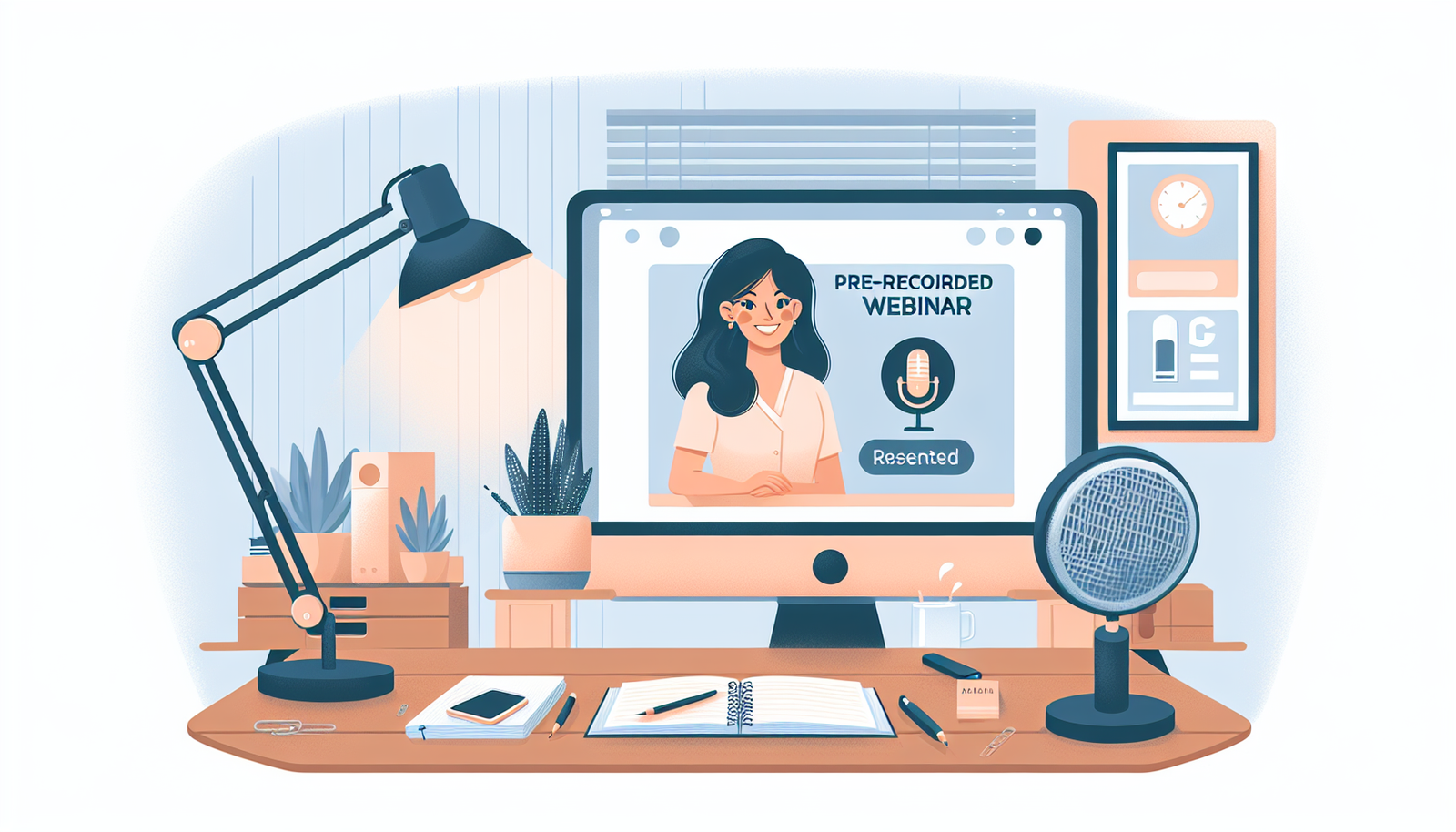
How to Create a Pre-Recorded Webinar
A pre-recorded webinar is honestly one of my favorite formats for sharing knowledge. You don’t have to fight live nerves, you can re-record small parts, and you can update the content later without starting from scratch.
What I like most is control. If something sounds off, you fix it. If a slide is unclear, you redo it. And if you want to use the same webinar as a lead magnet, evergreen training, or sales enablement, this format holds up really well.
Choosing the Right Topic for Your Webinar
Here’s the truth: your topic can’t be vague. “Marketing tips” won’t cut it. “How to write onboarding emails that get replies” is specific, and it gives people a reason to click.
When I pick a topic, I start with a simple checklist:
- Who is it for? (job role, experience level, industry)
- What problem are you solving? (time, money, confusion, errors)
- What’s the outcome? (a template, a framework, a step-by-step process)
- What can you prove? (examples, screenshots, before/after, case study)
Then I do quick research. Google Trends helps me see if interest is trending up or just a spike. I also scan Reddit, niche Facebook groups, or LinkedIn posts to find the exact wording people use when they describe their problem.
Want a concrete example? Instead of “teaching,” I’d go with something like “Effective teaching strategies for remote learning: lesson structure that keeps attention”. That’s specific enough to build slides around, but broad enough to cover multiple angles.
Planning Your Webinar Content
Once the topic is locked, planning is where the webinar stops feeling like a rambling talk and starts feeling like a real presentation.
My go-to structure for a 35–50 minute pre-recorded webinar looks like this:
- 0–3 minutes: Hook + who it’s for + what they’ll learn
- 3–10 minutes: The problem (why it happens, what it looks like)
- 10–30 minutes: The solution (3–5 core steps, each with an example)
- 30–42 minutes: Proof (mini case study, demo, “before/after”)
- 42–47 minutes: Implementation plan (what to do this week)
- 47–50 minutes: Recap + CTA
Here’s a simple tip that improved my retention: I place a “pattern break” every 7–10 minutes. That could be a quick poll question, a short story, a visual diagram, or a screen share segment.
Interactive elements don’t have to be live to work. You can do a “pause and answer” moment like: “In the next 30 seconds, write your biggest blocker in the chat (or in your notes).” Even though it’s pre-recorded, it still makes people feel involved.
Setting Up Your Recording Equipment
Equipment matters, but audio matters more. I can forgive imperfect video. I can’t forgive bad sound. If your mic picks up fan noise or echoes, people will leave—even if your content is great.
Microphone (budget tiers I’ve seen work):
- $30–$60: USB mic basics (good for beginners, but you’ll need a quiet room)
- $80–$150: A step up for clearer voice and less harsh sound
- $150+: Often better control and more consistent tone
You don’t need a studio setup. You do need to control the room. Record in a quiet space, and if possible, reduce reflections with something soft nearby (a rug, curtains, even a bookshelf full of stuff).
Audio settings to aim for:
- Keep peaks under -6 dB (so you don’t clip)
- Try to keep your average voice around -18 to -12 dB depending on your mic
- Do a 20-second test and listen back on headphones
For video, natural light is underrated. Face a window if you can. If you’re indoors, a simple softbox (or even two inexpensive LED panels) helps a lot.
Also: lock your framing before you record. I once lost 30 minutes because my camera cropped my face too tightly. Now I always do a test recording and check:
- Are my eyes roughly on the top third of the frame?
- Is there distracting background movement?
- Does my audio sound clean when I speak at my normal volume?
Creating Engaging Presentation Slides
Your slides should support your voice—not compete with it. If viewers have to squint, you’ve lost them.
Here’s what I do for slide design:
- Use 16:9 (standard widescreen) so everything looks right on YouTube and most players.
- One idea per slide. If you can’t fit it on one slide without scrolling, split it.
- Font size: aim for at least 28–32px for body text. Headings can be bigger.
- Limit bullets: 3–5 bullets per slide max (and make them short).
For visuals, I like using diagrams and simple charts. They explain faster than paragraphs ever will. Tools like Canva and Piktochart are great when you want a clean template without spending hours on design.
Slide deck template you can copy:
- Slide 1: Title + who it’s for + outcome
- Slide 2: Agenda (3–5 sections)
- Slide 3–5: Problem breakdown (what it looks like + why it happens)
- Slide 6–10: Steps/framework (each step gets a slide with an example)
- Slide 11: Common mistakes + how to avoid them
- Slide 12: Recap + “do this next” checklist
- Slide 13: CTA (link + what happens after signup)
Animations? Use them sparingly. I only add motion when it clarifies a sequence (like revealing a process step-by-step). Otherwise, it just becomes noise.
Finally, practice with the slides once. You’re checking flow, not memorizing. If a slide takes longer than 20–30 seconds to explain, it might be too dense.
Recording Your Webinar
Recording is where your planning pays off. A tidy setup + a clear script beats “winging it” every time.
Before you hit record:
- Clear your background (no clutter, no moving screens)
- Close extra tabs and silence notifications
- Put your script notes where you can read them without looking down too much
- Do a 3-minute test recording (not 30 seconds—listen for pacing and mic levels)
If you’re using OBS Studio or Zoom, you’ll usually be able to capture video and audio at the same time. In OBS, I typically record at 1080p and use a stable bitrate (avoid wildly changing settings mid-record).
Quick OBS/Zoom sanity checks I use:
- Make sure your audio input is the right device (it’s easy to accidentally record system audio)
- Check your video resolution and aspect ratio match your slides (you don’t want stretched text)
- Confirm you’re not clipping (watch the meters while you speak)
During the recording, pace yourself. Pre-recorded doesn’t mean “fast.” It means you can speak naturally and fix mistakes later. I try to leave small pauses between sections—those pauses make editing easier and help viewers follow along.
Editing Your Webinar for Quality
Editing is where the webinar becomes watchable. This is also where you can save time by being strategic instead of perfectionist.
My editing workflow usually goes like this:
- Step 1: Remove dead air and obvious mistakes (big cuts first)
- Step 2: Smooth transitions (short fade-ins/outs, keep it clean)
- Step 3: Fix audio (normalize, reduce noise if needed, keep voice consistent)
- Step 4: Add captions/subtitles (especially if you’re posting on YouTube)
- Step 5: Add a branded intro/outro and CTA screen
For editing software, I’ve used Adobe Premiere Pro and DaVinci Resolve when I want more control. If you’re just getting started, iMovie can still get the job done—just don’t skip audio cleanup.
About background music: if you use it, keep it very low. In my tests, anything louder than a whisper competes with your voice and actually hurts retention. A good target is around -20 dB relative to your speech, or just keep it barely audible.
Captions are worth it. Even if you don’t think your audience needs them, captions help people who are multitasking or watching on mobile.
One last thing: render after your edits with the right export settings. If you export too low, you’ll see it immediately—blurry text on slides is a fast way to lose credibility.
Publishing Your Pre-Recorded Webinar
Publishing is where your webinar starts earning its keep. Before you hit publish, make sure the page and video metadata are doing work for you.
Platform choice: If you want broad discovery, YouTube is hard to beat. If you want more control around registration and engagement, dedicated webinar tools can help. For example, you can explore WebinarJam when you want a more structured webinar experience.
SEO title + description examples (copy these patterns):
- SEO title: “How to [Achieve Outcome] (Step-by-Step Webinar) | [Audience]”
- Description first line: “In this webinar, you’ll learn how to [specific benefit] so you can [result].”
- Include keywords naturally: use your main phrase once in the first 1–2 sentences, then again later.
If you’re serious about signups, don’t skip the landing page. At minimum, your landing page should include:
- Headline that matches the webinar promise
- Short bullets of what they’ll learn (3–5)
- CTA button above the fold
- Simple form (name + email is usually enough)
- Optional: a short FAQ and what happens after signup
Also, pick a launch window. Even with pre-recorded webinars, a “start date” helps you coordinate emails, social posts, and (if you’re using them) ads.

Promoting Your Webinar to Your Audience
Once it’s live, promotion becomes the real difference between “we made a webinar” and “people actually watched it.”
I like to promote in waves:
- Wave 1 (3–7 days before): tease + announce
- Wave 2 (launch day): reminders + link everywhere
- Wave 3 (1–3 days after): recap clips + last call
Teaser clips: pull 15–30 second soundbites from the webinar. Post them as Reels/Shorts or in Stories. If you can, include one “result” line in the caption, like: “Here’s the exact framework I use to fix X in under 20 minutes.”
Email marketing example:
Subject line: “Want the step-by-step [outcome] process? (Webinar inside)”
Body (short version):
Hi [Name],
I’m sharing a pre-recorded webinar on [topic]—and I’ll walk you through the exact steps to [outcome].
In the webinar, you’ll learn:
• [benefit #1]
• [benefit #2]
• [benefit #3]
Watch here: [link]
See you inside,
[Your name]
Leverage your network too. Ask colleagues to share it, but give them something easy to repost (a ready-made caption or a short graphic). People are more likely to help when it’s effortless.
Communities and forums can work, but don’t drop a link and disappear. Add value first—respond to questions, then mention the webinar as a resource.
Paid promotion can help if your audience targeting is tight. Start small and test. If you can’t clearly describe who the ad is for, don’t spend money on it yet.
Analyzing Viewer Engagement and Feedback
This is where you find out what actually worked. Not what you hoped worked.
When you review performance, don’t just look at views. Look at:
- Average watch time (are people staying?)
- Drop-off points (where do they lose interest?)
- CTA clicks (did it convert?)
- Engagement (comments, replies, polls if you used them)
If you can, compare early vs. later performance. I’ve noticed that the first 24–48 hours often show whether your messaging matches the content. If registrations are decent but watch time is low, the hook might be off.
Then collect feedback. A short follow-up email survey works best when it’s specific. Ask things like:
- What part was most useful?
- What confused you?
- What would you like me to cover next?
- Rate the clarity of the steps (1–5)
Tools like Google Forms or SurveyMonkey make this quick. Keep it under 5 questions unless you really need more detail.
Finally, read comments and social reactions. Even a handful of “I wish you explained X” notes can help you build a better next webinar.
FAQs
I like topics that solve a real, specific problem and lead to a concrete outcome. A good test: if someone watches your webinar, should they be able to do something differently the same day?
Examples: “How to set up a landing page that converts,” “A beginner-friendly guide to automating X,” or “The onboarding email sequence that reduces churn.”
At minimum: a decent microphone, a webcam or camera, and recording software. If you’re choosing between “better camera” and “better mic,” pick the mic first.
Lighting helps a lot too—window light is fine. If your room echoes, focus on reducing reflections rather than upgrading everything at once.
Use a simple timeline and repeat your message. I recommend:
- T-5 days: announcement post + first email
- T-2 days: teaser clip + reminder email
- Launch day: multiple reminders (email + social + pinned post)
- T+1: last call + recap clip
Highlight the unique benefit (what they’ll learn) and keep the CTA consistent: one link, one action.
Start with analytics: watch time, drop-off rate, and CTA clicks. Then add qualitative feedback via a short survey.
If you notice people leaving at the same point, check that segment for pacing, slide density, or unclear explanations. That’s usually where the fix is.