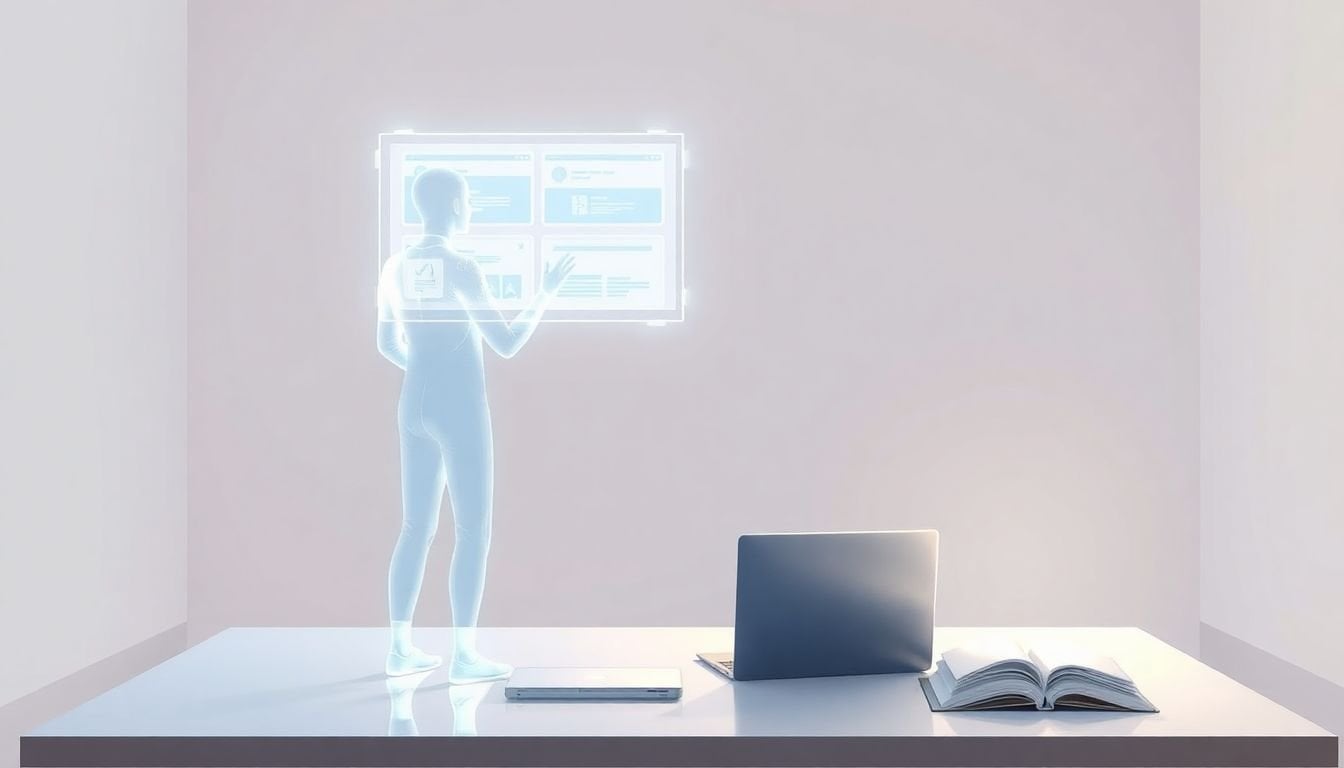
How to Create Effective Holographic Tutors in 7 Steps
When I first looked into holographic tutors for eLearning, I’ll be honest—I thought it’d be all hype and demo magic. But after digging into the workflow and running a small pilot, I realized the real story is less “science fiction” and more “careful design + real-time interaction + testing.”
If you’re building (or planning to build) a holographic tutor, the goal isn’t to impress people with 3D visuals. It’s to help learners understand something they usually struggle with—faster, with fewer dead ends, and with feedback that feels like a real instructor is in the room.
Key Takeaways
Key Takeaways
- Start with measurable learning goals, then build a tutor flow around them: 3D models/animations that match the concept, scripts that sound human, and UI that learners can use in under a minute.
- Holographic tutors work by combining spatial tracking (head/hand), sensors/cameras, and an AI layer that turns gestures + voice into responses in real time.
- The biggest wins usually come from interactive visualization (e.g., anatomy layers, machine parts, physics steps) and guided practice—not just “turning on holograms.”
- Make controls obvious and forgiving. In my experience, learners don’t fail because the content is hard—they fail because the interaction is unclear.
- Expect friction: tracking errors, latency, hardware constraints, and connectivity issues. Plan fallback modes (tap-to-continue, simplified gestures, offline content where possible).
- Build a minimum viable tutor for one lesson, test with real users early, and iterate based on what confused people—not what you hoped they’d do.
- Looking ahead, we’ll likely see lighter hardware and better multimodal AI, plus tighter analytics loops. But the foundation you build today (data, UX, testing) will still matter.
Step 1: Create Effective Holographic Tutors for eLearning
Effective holographic tutors aren’t built from “cool visuals.” They’re built from clear learning outcomes and a tutor flow that matches how people actually learn.
Here’s what I recommend starting with:
- Pick one outcome per lesson. For example: “Identify the 3 major muscle groups in the arm” or “Explain why a circuit fails and how to fix it.” If you try to teach five outcomes in one hologram session, the tutor will feel scattered.
- Map each outcome to an interaction. If the outcome is understanding, your interaction should force learners to do something: isolate a layer, rotate a model, step through a procedure, or answer a quick check.
- Design the 3D content around the concept. Don’t just drop in a detailed model. In my experience, simplified geometry + clear labels beats “realistic but noisy.”
- Write a script like a conversation. Not a lecture. Think: short prompts, then wait for input.
To make this concrete, here’s a simple interaction script pattern I’ve used:
- Prompt: “Show me where the biceps attaches. Use your hand to highlight the connection point.”
- Wait: 2–5 seconds of “listening” (no new audio until the system detects an action).
- Check: “Got it—now compare it to the triceps attachment. What’s different?”
- Feedback: If correct: “Nice. That’s the key difference.” If not: “Close. Try again—look for the tendon line near the elbow.”
Next, you need to test the experience like it’s going to be used by real humans (because it will be). In a pilot I ran, we discovered a weird problem fast: learners were moving too slowly for the gesture thresholds, so the tutor kept saying “I didn’t catch that.” The fix wasn’t fancy AI—it was adjusting the recognition window and adding a “tap to confirm” fallback.
Finally, don’t ignore technical stability. If tracking jitters or animations stutter, learners stop trusting the tutor. For hardware, devices like Microsoft HoloLens 2 are commonly used because the tracking quality is generally better suited for spatial interaction than many “first attempt” setups. (Just know that budget and deployment logistics still matter.)
Step 2: Understand How Holographic Tutors Work
At a high level, a holographic tutor is a loop:
- See: the headset/sensors capture head pose, hand pose, gaze (if available), and sometimes environment mapping.
- Interpret: your app turns those signals into “student intent” (e.g., “selected layer,” “rotated model,” “asked a question”).
- Respond: the tutor updates the hologram (animation, highlight, reposition) and delivers voice/text feedback.
- Learn: your system records what happened so you can improve scripts, gestures, and difficulty.
Here’s what that looks like in practice. When a learner turns their head toward a labeled organ, the tutor can change what’s visible or highlight the relevant part. When they perform a gesture (like “pinch to isolate”), the tutor triggers an animation and then asks a follow-up.
On the voice side, voice recognition plus an AI response layer is what makes the tutor feel interactive. But don’t treat it like magic. In early prototypes, I’ve seen two recurring issues:
- Latency: if the tutor takes too long to respond, learners repeat gestures and the system gets confused.
- Intent mismatch: if the AI interprets “show me the next step” as a general question, you lose the lesson flow.
That’s why it helps to design your tutor with predictable “lesson states.” For example: Explaining → Waiting for input → Checking → Feedback → Next step. Your AI can generate natural language, but the state machine keeps the tutor on track.
Also, you’ll see references to “mixed reality headsets” a lot, because they’re the practical way to project holograms into a real space. If you’re building on a platform like WordPress for eLearning, you’ll still need separate tooling for the hologram app itself—think of the course site as the wrapper, and the tutor as the interactive module.
Step 3: Identify the Benefits of Using Holographic Tutors
So, what are the real benefits? In my experience, holographic tutors shine when the content is spatial, procedural, or hard to visualize from a flat screen.
- Better understanding of complex structures. When learners can rotate, isolate layers, and watch the “why” behind a process, concepts click faster. You’ll often see improvements in retention with immersive or interactive visual instruction. The exact numbers vary by study and subject, so treat any “25–60%” style claim as a rough range until you test your own lesson.
- Guided practice without the physical risk. For training (especially technical or medical-adjacent topics), interactive simulations reduce mistakes and downtime. It’s not about replacing labs—it’s about giving learners reps before they touch real equipment.
- Consistency at scale. A tutor can repeat the same lesson flow for every learner, with the same prompts and checks—useful when you’re training multiple cohorts.
- Remote access. Students don’t need the same physical space as long as they have compatible devices. That said, you’ll still need a deployment plan for device access and setup.
One more thing: don’t confuse “immersive” with “effective.” A flashy hologram that doesn’t ask learners to do anything will still feel like a video. The benefit shows up when the tutor actively checks understanding and responds to learner actions.
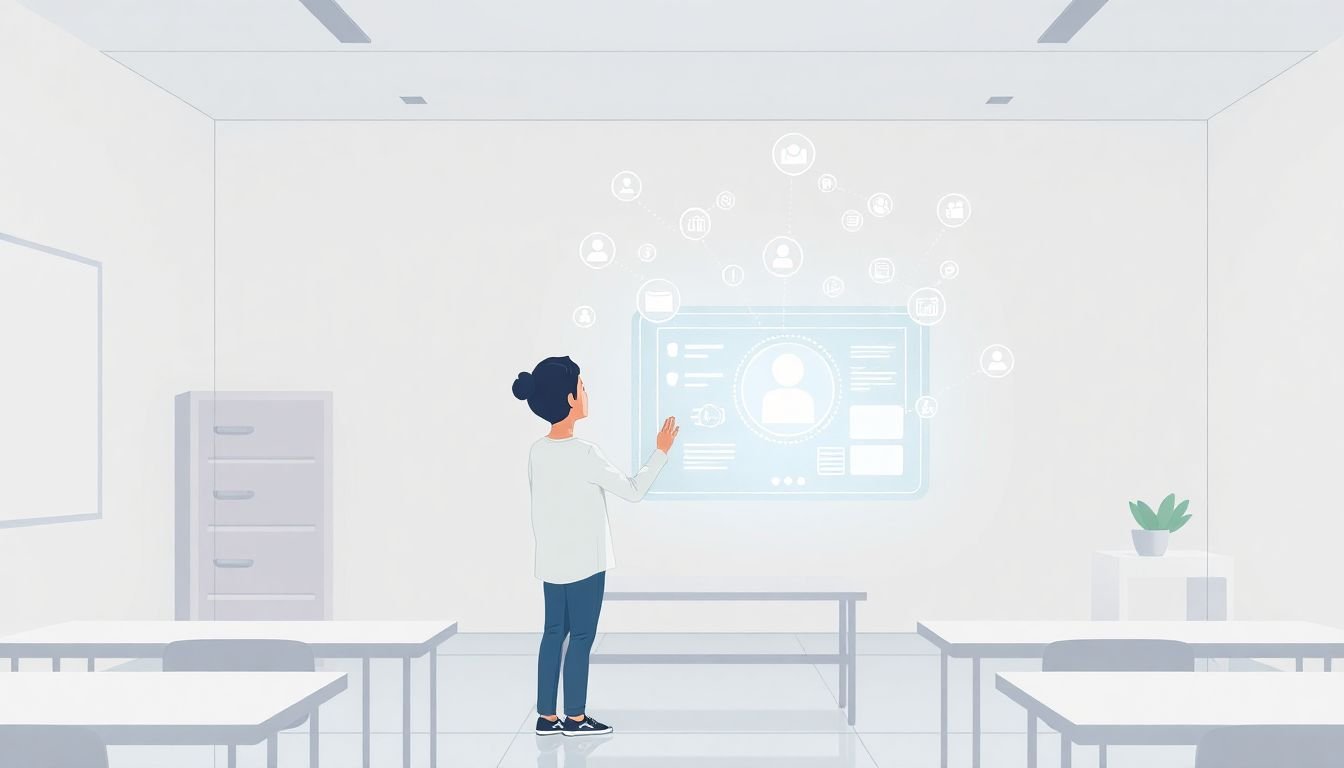
Step 4: Make Holographic Tutors Easy to Use for Students and Teachers
This is where most teams (including mine, early on) underestimate the work. Cool tech doesn’t matter if learners can’t figure out what to do in the first 30 seconds.
Here’s a practical usability checklist I follow:
- First-run onboarding: a 60–90 second tutorial that teaches only 2–3 actions (e.g., “look to focus,” “pinch to select,” “swipe to rotate”).
- Visible affordances: highlights, outlines, and “ghost” hand cues that show what the tutor expects.
- Clear next step: after every learner action, the tutor should either confirm (“Nice, that’s the correct layer”) or redirect (“Try again—highlight the tendon line”).
- Low-friction navigation: don’t bury controls. Use a simple “Back / Repeat / Continue” pattern.
- Teacher-friendly controls: if an instructor needs to pause, restart, or switch difficulty, give them an obvious way to do it.
In one usability session, we watched learners get stuck not on the concept, but on timing. They’d perform a gesture and then wait, expecting the tutor to “know” they were done. We fixed it by adding a short confirmation cue (a subtle chime + text “Selected”) and by shortening the tutor’s “waiting” window so it doesn’t feel like it’s ignoring them.
Also, please don’t overload the interface with options. If you’re thinking, “We should show every possible control,” pause. In most lessons, learners just need the next action.
Step 5: Overcome Challenges and Limitations of Holographic Tutors
Let’s talk reality. Holographic tutors come with constraints, and pretending they don’t is a fast way to end up with a product nobody trusts.
- Hardware cost and setup: headsets like HoloLens 2 aren’t cheap, and deployment takes planning. If you’re rolling this out for a school or training org, factor in device management, cleaning, charging, and staff onboarding.
- Tracking accuracy: gesture recognition can fail when lighting changes, when the learner moves quickly, or when the environment is cluttered. The fix is usually a combination of better thresholds, better gesture design, and a fallback.
- Latency: if voice + AI responses take too long, learners lose the flow. Even a small delay can turn “interactive” into “annoying.”
- Connectivity: if your tutor relies on cloud AI, you’ll need a strategy for poor connections. At minimum, cache lesson scripts and keep core interactions working offline where possible.
- Learning curve: learners may need time to get comfortable with spatial interaction. Teachers may need time to troubleshoot basic issues.
Here are two fallback strategies that consistently save projects:
- Gesture fallback: if a gesture isn’t detected, show a simple button prompt (“Tap to continue” or “Select with air-tap”).
- Script fallback: if AI can’t confidently answer, the tutor should switch to a pre-written explanation tied to the lesson state (“Let’s go back to Step 2: locate the attachment point…”).
That combination keeps your tutor helpful even when the tech isn’t perfect.
Step 6: Practical Tips to Build Your Own Holographic Tutor System
If you want a realistic path to building, start with a minimum viable tutor. Not a full curriculum. One lesson. One interaction loop. Then scale.
- Start small with one lesson state. Pick a topic that benefits from spatial visualization (e.g., “layers of the heart” or “how gears mesh”). Keep the session to 5–10 minutes.
- Build your content pipeline. Decide how you’ll store 3D assets, labels, and animations. If you’re creating course structure alongside your hologram app, you can use a course authoring workflow—like CreateAICourse—to organize modules and quizzes, then embed the tutor session as the interactive activity.
- Choose a hologram creation path you can actually maintain. Tools like Vuforia or 8th Wall are popular for getting to a prototype quickly, but “easy to start” doesn’t always mean “easy to scale.” In my projects, the biggest maintenance pain came from asset formats and versioning, not from the learning content.
- Test on real hardware early. If you can, prototype first with AR-capable devices, then move to something like HoloLens 2 or equivalent for spatial interaction testing. Don’t wait until “almost done.”
- Define interaction rules before you write fancy AI. Example decision rules:
- If a learner highlights the correct region for 2 consecutive seconds, trigger the next animation.
- If no interaction is detected in 8 seconds, repeat the prompt and show a fallback cue.
- If gesture confidence is < 0.6, ask a simpler question (“Try isolating the top layer”).
- Use a state machine for the tutor flow. This is the difference between “chatty” and “teaching.” Your AI can generate responses, but your lesson state should control what’s allowed next.
- Instrument everything. Log events like: prompt shown, gesture detected, confidence score, time-to-action, retries, and quiz results. Without this, you’ll only guess what confused learners.
- Iterate based on specific failure modes. In one pilot, we thought the problem was the script. It wasn’t. The real issue was the gesture recognition window. After adjusting timing + adding confirmation cues, completion rates went up.
If you want a simple “minimum viable tutor” plan, here it is:
- Week 1: one lesson outline + 2–3 interactions + pre-written feedback.
- Week 2: build the hologram scene + state machine + basic tracking.
- Week 3: run 5–10 user tests, capture confusion points, and tighten gestures/latency.
- Week 4: add analytics + improve the script for the top 3 failure cases.
That’s how you avoid building a “cool demo” that doesn’t actually teach.
Step 7: Look Ahead—The Future of Holographic Tutors in Education
Where this is heading is pretty clear: better multimodal AI, more reliable tracking, and tighter integration with learning analytics. But I’d rather focus on what you can prepare for now.
- More personalized tutoring—within guardrails. Instead of letting AI “freestyle,” you’ll likely use learner models (performance history, common misconceptions) to choose the next prompt. You can design your tutor scripts today so they’re modular and easy to swap.
- Better real-time reliability. Expect improvements in tracking and latency as hardware matures. Still, your best defense will be fallback modes and state-driven lesson flow.
- Analytics that actually help teachers. The future isn’t just dashboards—it’s “actionable insights” (e.g., “10 learners struggled with Step 3’s gesture; increase on-screen cueing”). Build your event logging early so you can evolve later.
- Broader device support. We’re already seeing AR-capable devices and mixed reality platforms expand. Even if AR glasses become more common, your content structure and interaction logic should stay consistent.
In other words: don’t wait for the perfect headset. Build the tutor architecture and lesson design so it can adapt as the hardware improves.
FAQs
They enhance eLearning by turning passive viewing into interactive practice. Learners can explore 3D concepts, follow guided steps, and get immediate feedback tied to their actions—so the lesson feels more like coaching than content playback.
Most holographic tutors combine demonstration (showing procedures or structures), guided explanations, real-time Q&A, and assessment-style checks with feedback. The key is that responses respond to what the learner does—not just what they say.
The big challenges are cost and deployment (hardware and setup), technical limitations (tracking, latency, gesture accuracy), and usability (making interactions intuitive). If you don’t plan for failure cases, learners will get stuck and the tutor won’t feel helpful.