
Automating Reporting on Instructor Performance: 7 Ways to Improve Insights
I’ve been in the position where instructor “performance” reporting is mostly spreadsheets, copy/paste, and hoping nobody forgets a step. It’s exhausting. And the worst part? You don’t find out something’s wrong until it’s already been wrong for weeks.
What finally made this feel manageable for me was automating the reporting pipeline—so the data updates on its own and the insights show up when they matter. In my experience, once you’re pulling attendance, engagement, and assessment results directly from your LMS, you stop guessing and start acting faster.
In the sections below, I’ll walk you through a practical setup: what to automate first, how to define the metrics so they’re actually useful, and how to turn alerts (and AI outputs, if you use them) into real next steps—not more noise.
Key Takeaways
- Automating instructor performance reporting cuts manual work and reduces errors because the numbers come straight from your LMS instead of being retyped or recompiled.
- Use integrations that pull data automatically (Canvas/Moodle events, grade passback, quiz submissions) and build dashboards that update on a schedule (weekly works well for most programs).
- Set up alerts using baseline thresholds and cooldown periods, so you catch problems early without spamming instructors or admin teams.
- AI can help summarize discussion patterns or feedback themes, but you should treat AI as a “first draft” and verify with real evidence from the LMS.
- Human-like reports aren’t about fancy visuals—they’re about context: what changed, why it matters, and what you recommend doing next.
- Automate data collection first (events, grades, attendance/participation proxies), then automate report generation, and only then add AI and alerts.
- Train your team with a short playbook: where to look, what “good vs. concerning” looks like, and the exact steps to take after an alert fires.
- Review your thresholds and dashboards every term. Courses change, grading policies change, and your reporting needs to keep up.

Automate Reporting on Instructor Performance for Better Insights
If you’re relying on manual checks, you’re basically building a reporting system out of memory. And memory isn’t a dataset.
When you automate reporting, you stop waiting weeks for feedback and start getting updates on attendance, engagement, and assessment results as they happen. The key is making sure the data comes from your LMS or course platform automatically (so you’re not rebuilding the same numbers twice).
Here’s the workflow I’d recommend:
- Connect data sources first: pull gradebook events, quiz submissions, attendance logs (or an attendance proxy), and participation signals (discussion posts, replies, assignment submissions).
- Define what “instructor performance” means in your context: not just student outcomes—also teaching behaviors you can measure (timely grading, discussion activity volume, responsiveness).
- Build dashboards that update automatically: I usually start with a weekly cadence so the data is stable enough to be meaningful.
- Make the dashboard filterable: course, instructor, date range, and cohort (so stakeholders can slice it without asking you for a custom report).
One practical example: LMS integrations can track completion rates, quiz scores, and participation levels without you manually exporting CSVs every time. But don’t just collect metrics—make sure you can explain them. “Participation is up” is nice. “Participation is up because more students are posting by Week 2” is actionable.
Also, schedule your reports consistently. Weekly is a sweet spot for most programs; monthly is fine for long courses; daily can work when you’re running short cohorts (like 2–4 week intensives). If you don’t have enough volume, daily alerts will just create noise.
Once this is in place, you’ll notice something: you stop chasing problems and start preventing them. And instructors tend to respond better when you show up with specific evidence instead of “vibes.”
Identify Key Features of Automated Reporting Systems
When I evaluate automated reporting systems, I don’t start with the UI. I start with integration and data quality. Because if the numbers aren’t right, no dashboard will save you.
Here’s what to check, in order:
1) Integration with your LMS (and the data you actually need)
Look for connectors that work with Canvas, Moodle, or your specific platform—and confirm they pull the event types you care about. For instructor performance, that usually includes:
- Grades/score events (quiz/assignment submissions)
- Attendance logs (or a participation proxy if attendance isn’t available)
- Discussion activity (posts, replies, thread participation)
- Instructor activity signals (grading timestamps, feedback delivery time, announcements posted)
2) Customizable dashboards (with the right filters)
Dashboards should let you filter by course, instructor, and time period. I also like having cohort filters (e.g., “Fall 2026 Cohort A”) because baselines shift between groups.
Scheduling matters too. If you can’t automate delivery (email/Slack/portal), you’ll end up back in manual mode.
3) Alerts that use baselines—not just raw thresholds
Alerts are where reporting becomes useful. But raw thresholds create false alarms. A better system compares performance to a baseline (previous weeks, previous term, or instructor historical averages).
Here’s a simple scoring rubric I use when deciding if a tool is worth the effort:
- Integration reliability (0–5): 0 = manual exports only, 5 = automated event sync with audit logs.
- Metric coverage (0–5): 0 = only gradebook, 5 = grades + engagement + instructor activity.
- Alert logic (0–5): 0 = one-size-fits-all thresholds, 5 = baseline comparisons + cooldown.
- Dashboard flexibility (0–5): 0 = fixed reports, 5 = filters + drill-down by course/instructor.
- Usability (0–5): 0 = only for analysts, 5 = stakeholders can interpret without training.
Thresholds: if a tool scores 16/25 or less, I treat it as “not ready.” If it’s 20/25+, I’ll pilot it with 1–2 courses and validate the numbers against your LMS exports.
4) Evidence trails (so you can trust the insight)
Any alert or AI summary should link back to the underlying LMS data (which quiz, which week, how many students, what the trend line shows). If it doesn’t, you’ll spend your time investigating instead of improving outcomes.
Bottom line: the best automated reporting systems don’t just show charts—they answer “what happened, where, and what should we do next?”
Enhance Instructor Feedback with AI Tools
AI can be helpful here, but I’ve learned not to treat it like a magic coach. In my setup, AI works best when it’s used for summarization and pattern detection—not for final judgments.
What I feed into AI (or what most systems will use) typically looks like this:
- Discussion content: discussion posts and replies (text)
- Engagement events: number of posts by week, reply counts, participation gaps
- Assessment results: quiz/assignment score breakdowns by question or learning objective
- Instructor actions: grading timestamps, feedback comments, announcement frequency
Then the system generates insights using either:
- Rule-based logic: “If quiz scores drop by X% compared to baseline, flag Topic Y.”
- Model-based pattern detection: “These discussion threads show repeated confusion around concept Z.”
Here’s what I noticed matters: you need a confidence threshold and a fallback. For example, if the AI is only 60% confident that students are confused about a concept, don’t send a strong coaching message. Instead, label it as “possible theme” and attach supporting evidence (e.g., which threads/questions triggered the pattern).
What to do with AI feedback (the “action” part)
AI summaries should always end with something the instructor can try within a week. Good outputs look like:
- “Students are asking the same clarification question in Week 3 threads. Consider adding a short example problem and a FAQ post by Friday.”
- “Discussion participation drops after Day 10. Try a mid-week prompt and require at least one reply to a peer by Thursday.”
- “Quiz Question 5 underperforms across multiple cohorts. Review the learning objective and add a targeted practice set.”
One limitation I want to be upfront about: AI can misinterpret context. If the discussion includes off-topic conversation or sarcasm, the sentiment/theme analysis can be misleading. So I always recommend instructors verify the top 5–10 examples the AI cites before making big changes.
Quick accuracy check I use
- Pick one course and review AI-generated themes against actual discussion threads.
- If it’s consistently correct for 2–3 themes, you can trust it more.
- If it’s off frequently, reduce reliance and stick to rule-based alerts plus human review.
When you do it this way, AI becomes a time-saver: it points you to what to check, not what to believe blindly.
How to Make Human-Like Data Visualization Reports
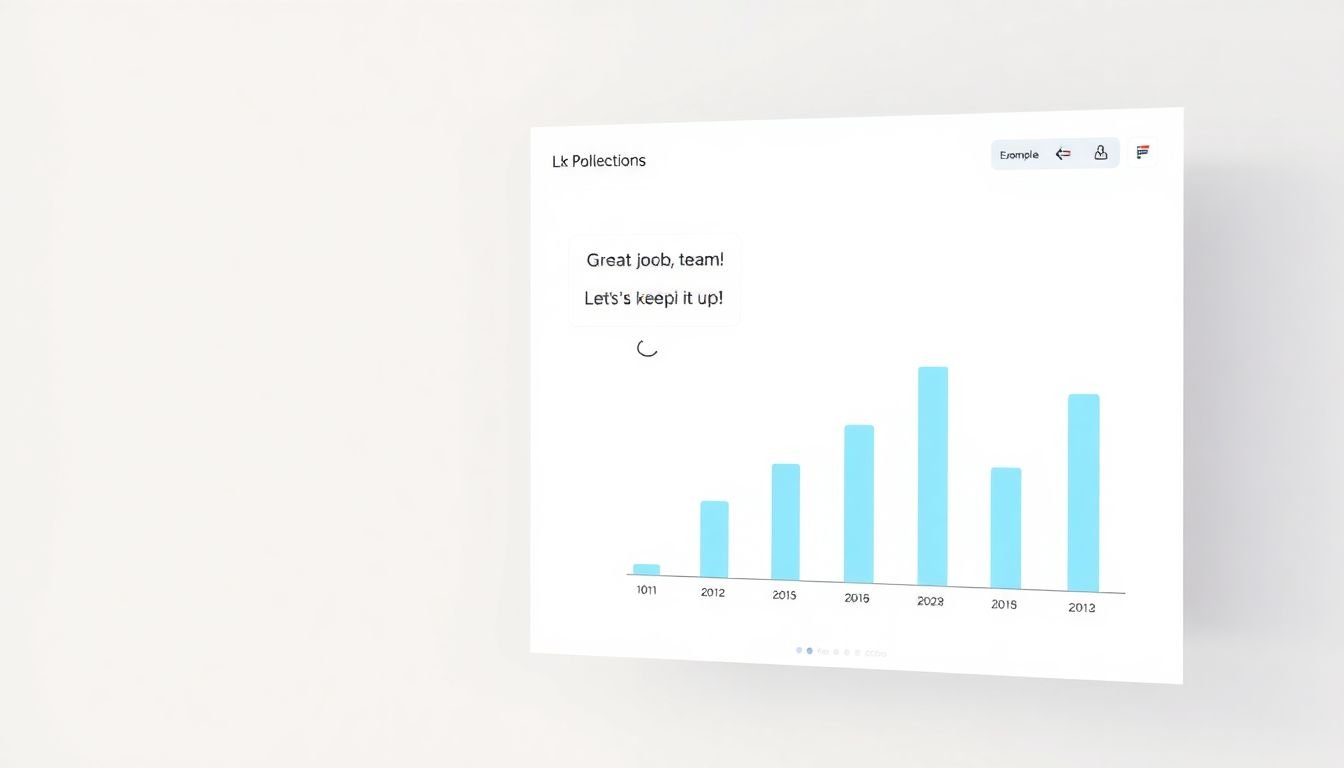
Pretty charts don’t automatically make better decisions. Human-like reports are about clarity and context.
What “human-like” looks like in practice
- Use simple visuals: bar charts for comparisons, line graphs for trends. If it needs a legend the size of a book, it’s too complex.
- Add context right on the chart: a short annotation like “Quiz 2 covered Topic B” or “Attendance proxy used: login + assignment submissions.”
- Include a plain-language summary: 3–5 sentences that explain what changed and why it matters.
- Show the “so what”: not just “scores dropped,” but “scores dropped most on Questions 4–6, which map to Learning Objective 2.”
- Reference real examples: one course where engagement spiked, one course where it dropped, and what happened around that time (new module, holiday break, grading policy change).
Tools like Tableau or Power BI help a lot because they make it easier to add annotations and build dashboards that instructors can scan quickly. Also, make sure the report is readable on mobile. If someone can’t understand it on a phone in 20 seconds, it won’t get used.
One more thing: avoid “cheerleader” language. I’d rather see “This trend suggests students may need more guided practice” than a generic motivational sentence.
Automate Data Collection for Instructor Performance Metrics
Automating reporting is only as good as the data pipeline behind it. Start with data collection and make sure you’re capturing consistent events.
In my experience, the best approach is to connect your LMS (like Moodle or Canvas) directly to your reporting stack so events land automatically in your dashboard.
Metrics you can define clearly (and reuse every term)
- Completion rate: (Number of students who completed the course / Number of students enrolled at start) × 100.
- Quiz average: mean score across graded quizzes, optionally weighted by points possible.
- Assessment trend: compare current quiz average to baseline (previous term average or last 3 quizzes average).
- Participation proxy: (Discussion posts + replies + assignment submissions) per active student, per week.
- Timely grading: % of graded items returned within your SLA (example: within 3 days of submission).
- Feedback responsiveness: average time between student submission and instructor feedback posting (if you have timestamps).
Scheduling matters too. If your reporting tool supports it, set a schedule like:
- Daily sync for event capture
- Weekly report generation for instructor-facing insights
If you’re unsure what tools support the integrations you need, this list of online learning platforms can help you map options to your LMS.
When data flows in consistently, you can spot issues early—like a sudden engagement dip after a module change—and you can act while there’s still time to fix it.
How to Set Up Automated Alerts for Instructor Performance Issues
Alerts are where automation becomes real. But if you set them up poorly, you’ll create alert fatigue and nobody will pay attention. Been there.
Instead of relying on only one threshold, use a baseline and a cooldown.
Define thresholds that make sense
Here are examples that are common and easy to justify:
- Attendance/engagement drop: participation proxy falls below 70% of the baseline for that course cohort.
- Assessment decline: quiz average drops by 10% or more compared to the previous quiz average (or previous term).
- Topic-specific underperformance: question group tied to Learning Objective 2 drops below 65% correct.
Add a cooldown period (this is the part people skip)
Cooldown prevents repeated alerts for the same issue. For example:
- After an alert fires, wait 7 days before triggering another alert on the same metric for the same course/instructor.
- If the metric stabilizes, reset the cooldown.
Example alert configuration (so you can copy the idea)
- Trigger: Participation proxy < 0.70 × baseline
- Scope: course + instructor + week window
- Minimum sample: only evaluate if at least 20 active students submitted or participated
- Cooldown: 7 days
- Notification: email to instructor + Slack to learning support team
- Include evidence: show last 4 weeks trend + top 2 engagement drops (e.g., “Discussion prompt missed Week 2”)
Also, keep alerts actionable. A message like “Something changed” is useless. A message that says “Participation fell after Module 3; students stopped posting in discussions” gives the instructor something to check immediately.
And yes—review and tweak alert settings after the first term. False positives are inevitable when you’re learning your data patterns.
One more practical note: if your system supports it, route different alert types to different people. Instructors should get teaching-related alerts; admin teams should get systemic issues (like multiple instructors seeing the same drop across courses).
How to Train Your Team on Using Automated Reporting Tools Effectively
Even the best automation won’t help if your team doesn’t know how to interpret it. Tools don’t teach themselves.
What I’d include in training (keep it short and specific)
- Where to look: dashboard layout, filters, and how to switch between course/instructor views.
- How to read trends: what “baseline” means and why week-to-week noise is normal.
- What to do after an alert: a 3-step checklist (open evidence → review top contributing factors → choose one intervention → note outcome).
- How to respond to AI summaries: treat AI as a draft, verify with LMS examples, and record whether the theme was accurate.
Give them examples of “good use.” For instance:
- “We noticed participation dropped in Week 3. The instructor added a mid-week prompt and the next week’s participation recovered.”
- “Quiz averages fell on Topic B. The team updated practice questions and added a short review video.”
If you want a reference for structuring those teaching improvements, this guide on effective teaching strategies can be a helpful companion.
Roles make this easier
Assign ownership so alerts don’t get stuck. For example:
- Instructor: responds to teaching/engagement alerts in their courses
- Learning support: handles engagement drop patterns that repeat across multiple courses
- Admin/reporting owner: monitors data sync issues and threshold performance
And please, build a one-page cheat sheet. If someone has to “figure it out” every time, automation becomes another burden.
Ways to Maintain and Improve Automated Reporting Systems Over Time
Automation doesn’t mean “set it and never touch it.” It means “set it up right, then keep it healthy.”
Here’s what I check each term:
- Integration health: did the LMS update break any event mappings?
- Data completeness: are missing values showing up in attendance or discussion participation?
- Threshold effectiveness: did alerts fire too often, or not often enough?
- Dashboard usefulness: are instructors actually using the reports, or just ignoring them?
Get feedback from instructors. Sometimes the numbers are correct, but the report format isn’t helping them make decisions.
Also, update thresholds as course goals change. A “good” quiz average in one program might be average in another. If your baseline is wrong, your alerts will be wrong.
Finally, keep an eye on new features in your reporting tools. When platforms add better drill-downs or improved alert logic, it can reduce manual work again.
If your system starts lagging or becomes harder to maintain, consider switching to solutions that keep improving. Create AI Course is one option if you want a platform that evolves with newer AI capabilities.
The goal is simple: keep insights relevant, keep the data trustworthy, and keep the workflow easy enough that people actually use it.
FAQs
Automated reporting pulls data continuously from your LMS and turns it into consistent summaries. Instead of waiting for end-of-term spreadsheets, you can spot trends (like declining participation or quiz performance) early and use the evidence to support coaching and course adjustments.
Prioritize reliable LMS integrations, dashboards with course/instructor/time filters, scheduled report delivery, and alert logic that uses baselines (not just one-off thresholds). If it can’t show evidence behind the insight, it won’t be trusted by your team.
AI can summarize discussion themes, identify repeated confusion patterns, and help you draft targeted coaching suggestions. The best results come when AI is paired with evidence from the LMS and a confidence threshold—so instructors verify before acting.
Start with clear goals and a small pilot (1–2 courses). Confirm data accuracy against LMS exports, define metrics you can explain, and train your team on what to do when an alert fires. Then refine thresholds and report formats each term based on real feedback.