
Analytics Dashboards For Tracking Student Progress Guide
Keeping tabs on student progress can feel like herding cats—especially when you’re balancing grades, attendance, and behavior all at once. I’ve watched teachers lose hours to spreadsheets that don’t quite answer the question they actually have in their head: “Who needs help, and what kind?”
That’s exactly where analytics dashboards come in. When they’re set up well, they don’t just show data—they help you spot patterns fast, drill into the “why,” and decide what to do next without waiting for the end of the term.
In the sections below, I’ll walk through the core features, the metrics that matter, and how to use dashboards in a way that’s actually practical in a school week.
Key Takeaways
- Good student progress analytics dashboards pull together grades, attendance, and engagement so you can intervene earlier (not just report after the fact).
- Popular dashboard tools differ a lot in setup and cost: Power BI, Looker Studio, and Tableau each fit different school ecosystems.
- Don’t stop at grades—include participation, resource usage, and assignment submission patterns to find the real bottlenecks.
- Use clear filters (period, course, student group, teacher) and review on a consistent schedule (weekly is a solid starting point).
- Predictive and “risk” features can help, but they also create false positives—so you need thresholds and a human review step.
1. Understanding the Core Features of Student Analytics Dashboards
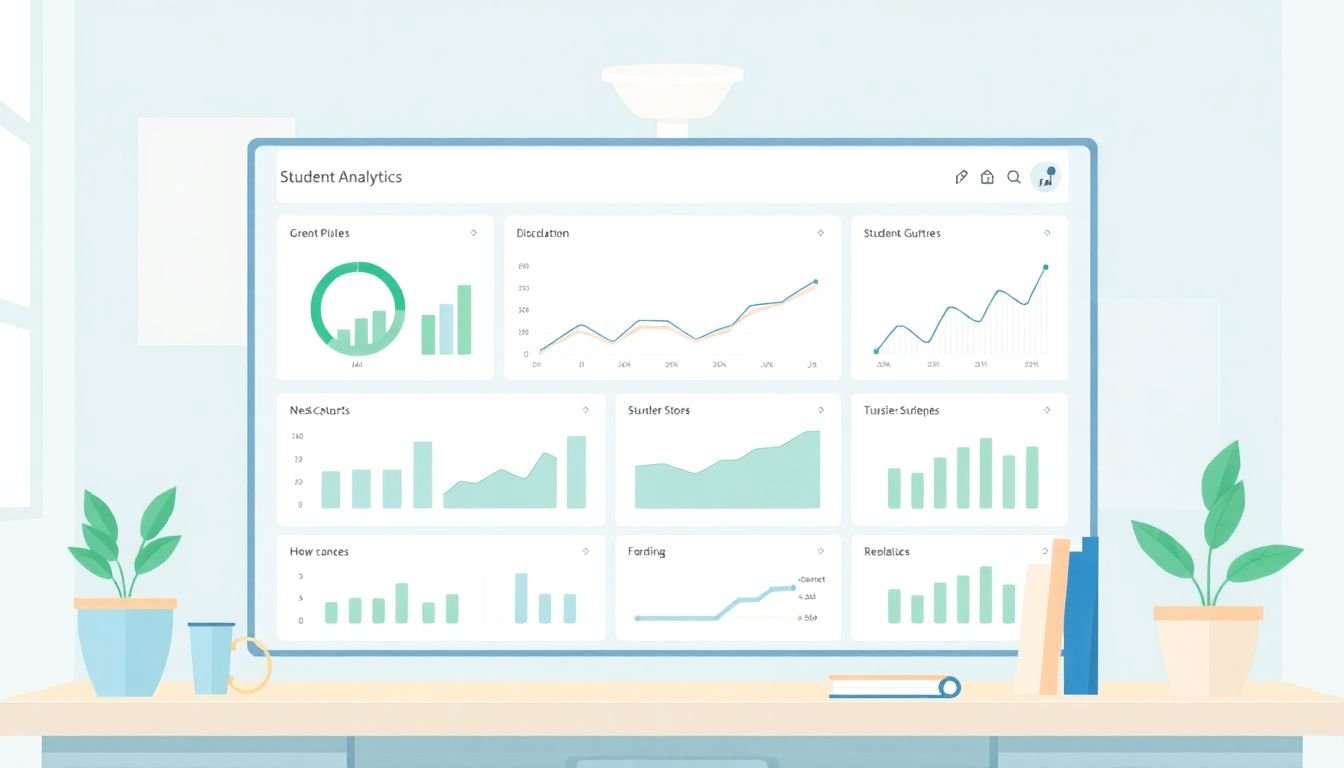
If you’ve used any kind of classroom analytics before, you probably recognize the basics: attendance counts, grade snapshots, and completion rates. But the difference between a “dashboard” and something genuinely useful is usually in the details—how fast it updates, how easy it is to filter, and whether it helps you decide what to do next.
Here’s what I look for in student analytics dashboards:
- Real-time or near-real-time updates. In practice, that means you can check after a quiz window closes (or even during the week) and see who’s trending down. Not “three weeks later when the data is already stale.”
- Clear visualization, not data dumps. A good dashboard uses charts and simple heatmaps so you can scan in 30 seconds. If you have to “interpret” the dashboard every time, it won’t get used.
- Drill-down from group to student. Start with a class-level view (pass rates, missing work, attendance). Then click into a smaller slice—course section, subgroup, or individual student—without exporting anything.
- Filters that match real classroom decisions. Period (week/unit), course, teacher, student group, and sometimes location (if you’re multi-campus). If your filters don’t mirror how educators plan, you’ll fight the tool.
- Support for engagement signals. Grades alone can hide what’s going on. Engagement indicators like participation counts, discussion activity, time on task, or resource access help you spot “quiet struggles.”
- Communication hooks (optional, but powerful). Some dashboards can generate lists for outreach—so you can message caregivers or students with context instead of vague “please improve.”
One more thing: adaptive or “personalized” analytics can be useful, but only when it’s based on transparent inputs. If the dashboard can’t explain what it’s using (like assessment history, assignment completion, or skill tags), it’s hard to trust the recommendations.
2. Overview of Popular Platforms and Their Notable Features
There are a lot of analytics tools out there, but the real question is: which one fits your data sources and how your staff actually works?
Here are three common options, plus what I’d consider “make or break” differences:
Power BI (Microsoft-friendly)
Power BI is a strong pick if your district already lives in Microsoft land (Office 365, Teams, Excel workflows, Azure-based systems). In my experience, it’s also easier to build when you have a data team comfortable with modeling and scheduled refreshes.
Looker Studio (Google-friendly)
Looker Studio (formerly Google Data Studio) is usually a smoother start if you’re already using Google Classroom, Drive, or Workspace. It’s also great for lighter-weight reporting and dashboards that don’t need heavy custom data modeling.
Tableau (enterprise-grade flexibility)
Tableau tends to shine when you’re working with larger datasets, multiple data sources, or you want more advanced visual exploration. If your district has complex permissions, Tableau is often a natural fit (but it can take more effort to roll out consistently).
Specialized learning platforms
Smaller tools like Edmodo and Schoology can be helpful when you want analytics that match learning workflows directly, without building a full data warehouse first. The tradeoff is usually less flexibility and fewer “district-wide” reporting options.
Before you pick anything, I recommend comparing tools using the criteria below:
- Data sources you already have. Do you have attendance and grades in a format you can connect to? Is there an API? Are you stuck with manual CSV exports?
- Implementation time. A basic dashboard can be up fast. A district-ready one with scheduled refresh, permissions, and data cleaning can take weeks.
- Permissions and privacy. Can you restrict views by teacher, school, or role? You need this for student data safety.
- Cost structure. Look at licensing (per user vs per capacity), plus any server or data pipeline costs if you’re scaling.
- Support and training. If teachers can’t interpret the dashboard, it won’t matter how “powerful” it is.
Quick decision matrix (practical version)
- Choose Power BI if you’re Microsoft-heavy and want a strong modeling/reporting workflow with solid enterprise support.
- Choose Looker Studio if your data is already Google-centered and you want a faster path to dashboards with straightforward sharing.
- Choose Tableau if you need advanced visualization and you’re prepared for a more involved rollout for district-scale reporting.
3. Key Metrics to Track for Student Progress
So, what should you actually track? If you only look at grades and attendance, you’ll miss the “early warning” signals that show up in engagement and submission behavior.
Here are the metrics that tend to be most actionable:
- Attendance rate (and patterns, not just totals). Example: “% days present” by week, plus chronic absence flags.
- Assignment submission rate (by course and unit). A student can have decent quiz scores but still fail due to missing work.
- Missing work count and aging. Not just “missing,” but “missing for >7 days” or “missing in the last 2 units.” That changes intervention urgency.
- Formative assessment trend. Instead of a single score, track movement: last assessment vs previous assessment, and whether the trend is improving or slipping.
- Engagement indicators like participation in discussions, resource views, time-on-task (if you have it), or module progress.
- Skill mastery tags (if your curriculum supports them). This helps you pinpoint whether a student is struggling with “fractions operations” vs “word problems,” for example.
- Behavior and support signals (when available): quiz delays, repeated incomplete attempts, or consistent non-participation.
A quick example of how these metrics connect: Imagine a student’s attendance is fine, but submission rate drops from 95% to 60% over two weeks. At the same time, formative quiz scores stay flat. That combination often points to a specific barrier—maybe the student is stuck on a unit skill set or struggling with reading load. The dashboard helps you stop guessing and start targeting support.
4. Strategies for Effective Dashboard Usage
Here’s the part that matters most: having a dashboard isn’t the same as using it.
1) Start with a short list of goals. Don’t try to track everything at once. Pick 2–3 goals like:
- Reduce missing assignments in Unit 2
- Identify students whose formative scores are declining
- Monitor engagement for online modules (if you use them)
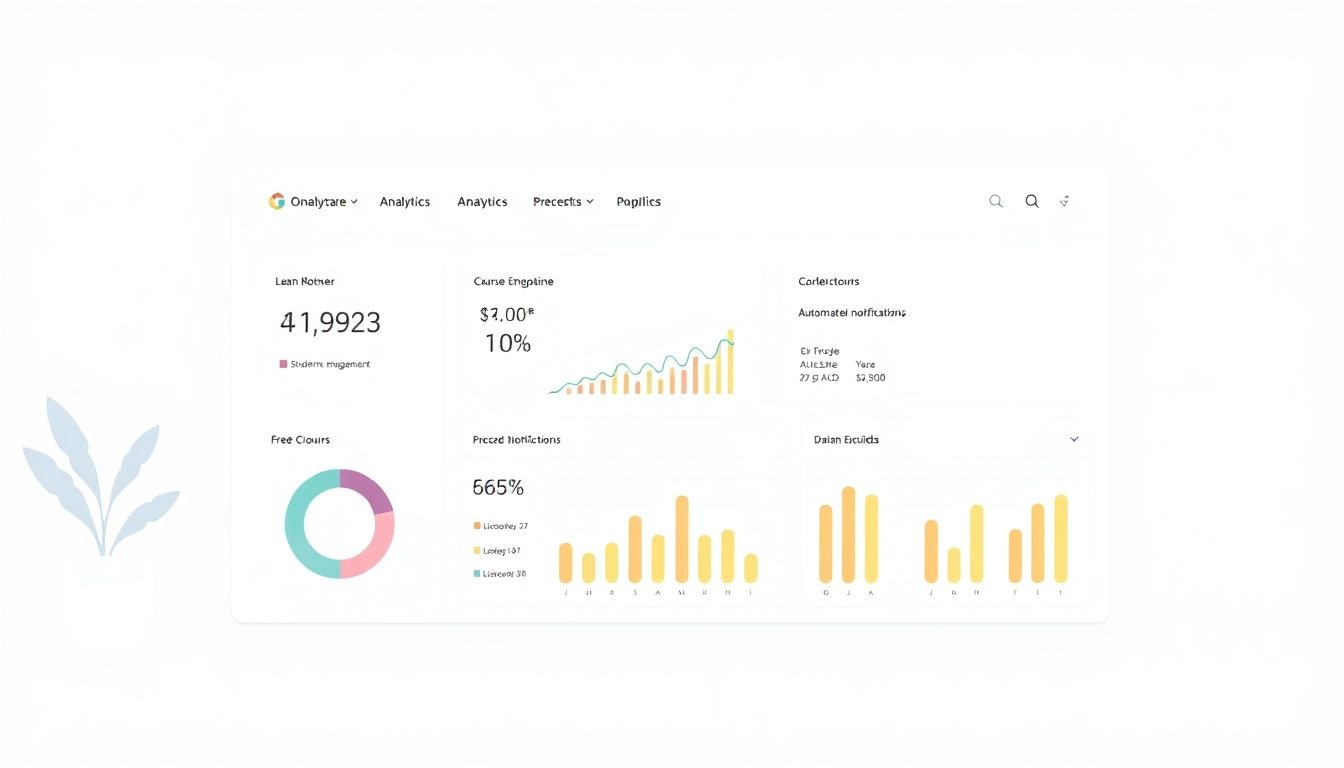
2) Build dashboard pages around decisions. For example, I like to see at least three views:
- Overview: class-level pass rates, attendance %, submission rate, and a “top concerns” list.
- Intervention: a table of students filtered to those with missing work > X days or falling formative trends.
- Details: a student drill-down with the “why” (assessment trend, assignment history, engagement signals).
3) Use a schedule that matches the school rhythm. Weekly check-ins are usually realistic. If you’re doing more (like daily alerts), you’ll need automation and a clear response workflow so it doesn’t become noise.
4) Share insights with students—carefully. I’m a fan of showing progress, but you have to frame it right. You want students to see “what to do next,” not “you’re failing.”
For example, instead of “You’re at risk,” try something like:
- Student-facing: “Your Unit 3 submission rate dropped. Let’s pick one assignment today and finish it together.”
- Goal template: “This week, your target is 3 completed assignments. Check the tracker every Friday.”
- Skill focus: “Your quiz results show you’re improving on problems 1–5. Let’s practice 6–10 next.”
5) Add automated nudges where they help. Alerts work best when they trigger a specific action. Example: “If submission rate < 70% for two weeks, notify the teacher and generate a support list.”
And yes, involve colleagues. When multiple teachers interpret dashboards differently, the same student can get different actions. A quick shared rubric (what counts as “at risk,” what intervention follows) saves a lot of confusion.
5. Advanced Features That Provide Deeper Insights
Once you’ve got the basics working, advanced features can add real value—but only if you understand what they’re doing.
Predictive analytics (what it really means)
Predictive analytics usually takes past patterns (attendance, submission behavior, formative scores, engagement signals) and outputs a risk score or probability like “likely to fail within the next 6 weeks.”
In a real classroom workflow, that risk score should drive something concrete:
- Risk threshold: e.g., risk score > 0.7
- Verification step: teacher reviews the student’s recent assignments and attendance
- Intervention trigger: tutoring session, small-group reteach, or targeted practice packet
- Follow-up: check whether engagement/submission improves after 2 weeks
Here’s the limitation people don’t always talk about: risk scores can produce false positives. A student might look “at risk” because of missing early assignments, but then catches up later. That’s why I strongly prefer thresholds plus human review—especially for high-stakes labels.
Adaptive recommendations (what they should output)
Adaptive learning recommendations should do more than “suggest content.” Ideally, it maps student performance to skill tags and recommends the next best activity. For example:
- Input: quiz performance by skill tag + assignment completion history
- Output: “Practice set for skill A (10 items), then short quiz B”
- Teacher action: confirm it matches your curriculum and monitor progress
Automated grading
Dashboards that connect to quizzes or form-based assessments can save time, especially for frequent checks. The key is to make sure automated grading is consistent and that you still review outliers (like open-response questions that need rubric checks).
Retention and disengagement analysis
Retention-style analysis often focuses on participation trends and content interaction. Practically, you’ll want to spot students who are “present but not progressing”—for example, they open videos but don’t complete the associated practice.
Path reports and heatmaps
Heatmaps and “learning paths” are useful when you want answers like: Which resource gets attention? Which step causes drop-off? If you see that students consistently stall at a specific lesson segment, that’s a great spot to revise instruction or add scaffolding.
6. Selecting the Most Suitable Analytics Tool
Choosing the right analytics tool is less about “best platform” and more about “best fit.” Here’s how I’d decide.
1) Match the tool to your data reality.
- If you can connect to attendance and grade systems automatically, you can build richer dashboards.
- If you only have manual exports, you need to plan for refresh delays and extra cleaning.
2) Think about who will use it. Teachers need clarity. Administrators may need broader views. Data teams need flexibility. If you pick a tool that only one group can operate, adoption will stall.
3) Look at cost beyond licensing. Some tools are cheap to start but expensive to scale because of data pipelines, server capacity, or implementation support.
4) Prioritize permissions and privacy. Student data requires role-based access. Make sure the platform can restrict views by school, teacher, or cohort so you’re not sharing more than necessary.
5) Plan for training. If you can’t train staff, the dashboard becomes shelfware. Even a 30–45 minute session on filters, drill-down, and “what to do next” helps a lot.
For many schools, Google-based setups naturally align with Looker Studio, while Microsoft-based environments often align with Power BI. Tableau is often chosen when districts want deeper exploration and enterprise-level reporting.
7. Example Case Study: Power BI in Schools
Curious whether analytics dashboards actually change anything? The best evidence comes from documented implementations where the dashboards are used to drive actions—not just to create reports.
Important: In the original draft, claims like “67% increase in engagement” were mentioned without a verifiable, specific citation (journal/article, authors, sample size, and what “engagement” exactly measured). I’m not going to repeat those numbers without the details you’d need to confirm them.
That said, here’s a realistic example of what a Power BI deployment in schools typically looks like when it’s done well:
- Data inputs: attendance records, assignment submission logs, formative assessment scores, and (if available) engagement events like resource views.
- Dashboard structure: one overview page per school and per grade band, plus student drill-down pages for teachers and intervention teams.
- Intervention workflow: weekly review of a “students to support” table filtered by missing work aging and assessment trend.
- Teacher action: small-group reteach, targeted practice, or caregiver outreach based on the “why” shown in the drill-down.
- Follow-up: re-check the same metrics two weeks later to see whether submissions and formative performance improve.
If you want to evaluate whether a district’s Power BI implementation is working, ask for the metrics that prove it:
- How many students moved from “at risk” to “on track” after interventions?
- Did missing-work aging decrease?
- Did formative assessment trends improve for the target group?
- Did teachers actually use the dashboard weekly (usage logs can help)?
That’s the stuff you can measure, not just the stuff you hope dashboards will do.
8. Anticipating Future Developments in Student Analytics
What’s next in student analytics dashboards? A few trends are already obvious:
- More AI-assisted guidance. Instead of only “here’s the risk,” you’ll see recommendations like “practice these 12 items” or “try this reteach strategy,” with clearer explanations of why.
- Better integration between learning tools and reporting dashboards. The more events you capture (resource interactions, practice attempts, assessment attempts), the more accurate the insights can be.
- More teacher-friendly interfaces. Busy classrooms need dashboards that don’t require a data degree. Expect simpler views, better defaults, and fewer clicks to get answers.
- More emphasis on formative assessment. Frequent checks (quizzes, exit tickets, short practice sets) feed dashboards faster than end-of-unit tests, which supports quicker intervention.
- Equity and transparency focus. The conversation is shifting toward making models explainable and ensuring risk scoring doesn’t just reproduce existing gaps.
I also expect more schools to build dashboards around “actionability”—meaning every insight should map to a next step, not just a number on a screen.
FAQs
Start with attendance, assignment submission (including aging of missing work), and formative assessment trends. Then add engagement signals like participation or resource interaction if you have them. Together, these metrics tell you not just whether students are struggling, but when and how.
Set clear goals tied to specific metrics, train staff on how to use filters and drill-downs, and review the dashboard on a consistent schedule (weekly is a common starting point). If you share information with students or families, keep it actionable—focus on next steps, not labels.
Look for predictive risk scoring (with clear inputs and human review), personalized recommendations tied to skill tags, automated alerts that trigger a defined intervention, and drill-down reports that explain what’s driving the trend (submission history, assessment movement, and engagement patterns).
Align the tool with your goals and data sources, evaluate ease of use for teachers, confirm integration options, and check privacy/permissions capabilities. Finally, consider support and training—because adoption depends on how confidently staff can interpret and act on the dashboard.